PDF Navigation
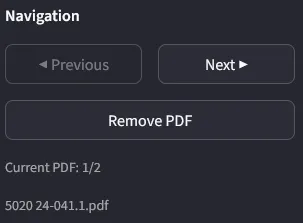
Use Previous and Next to move between uploaded PDFs. Changes save automatically.
Remove PDF removes the current file from the processing stack but does not delete it from your hard drive.
The PDF preprocessor automates invoice renaming using OCR, entity matching, Monday.com integration, and batch file saving. Upload invoices, review extracted data, and save or upload directly to Monday.com.
Steps:
InvoiceProcessor.exeIntranet deployment is still in progress. Check back for updates.
Upload PDFs
Drag multiple PDF files into the upload box or click Browse files.
Click Process PDFs
The system extracts data using OCR and matches against your databases. Give it time to load, processing multiple files takes a moment.
Review Results
Each PDF shows a preview and extracted details.
Saving Results
Single/Batch save multiple documents into folder or upload to Monday.com.
Once open, scanned and downloaded invoices can be uploaded into the preprocess stack.
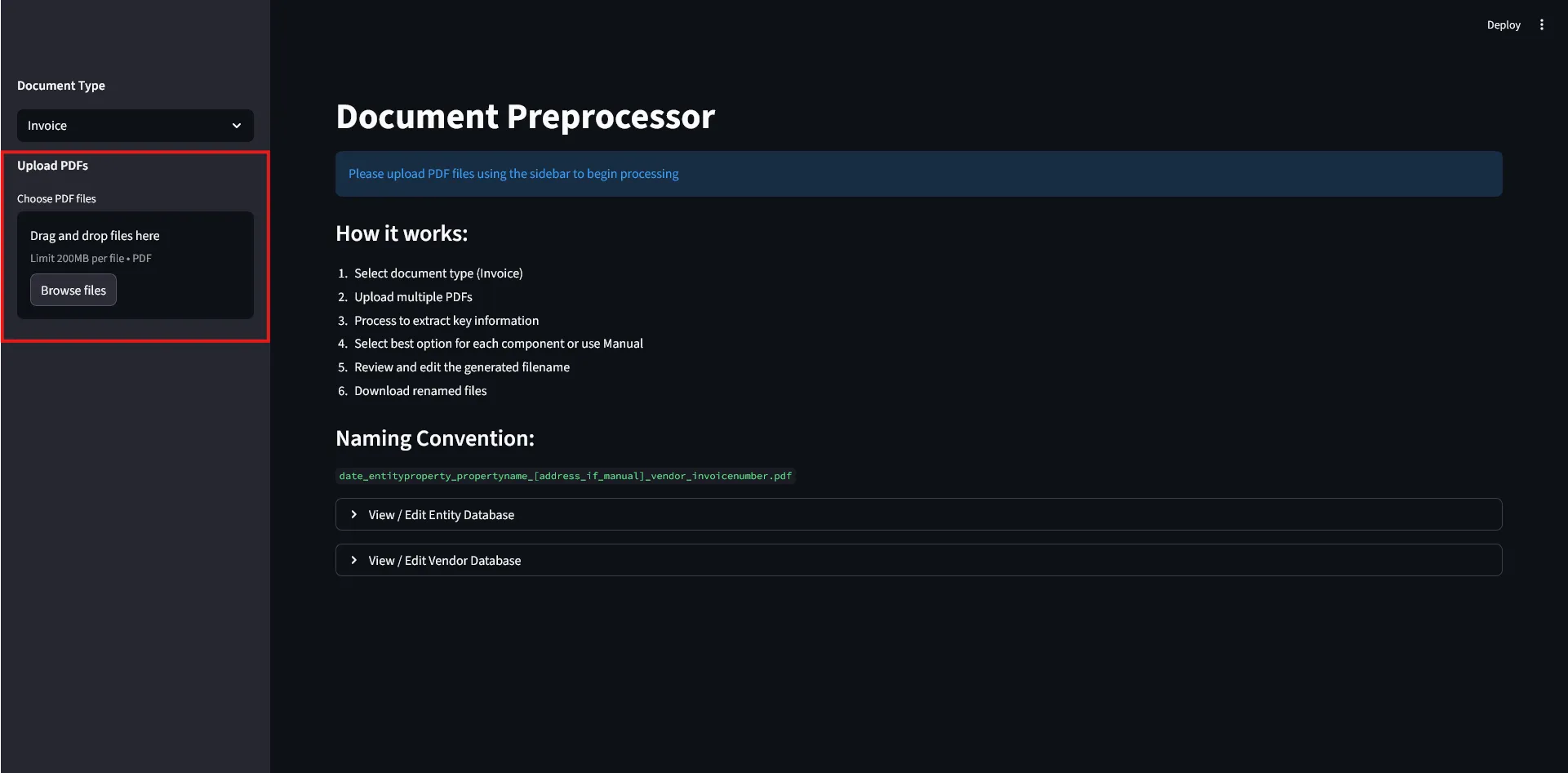
Before processing, verify your entity and vendor databases are current.
To update the entity database:
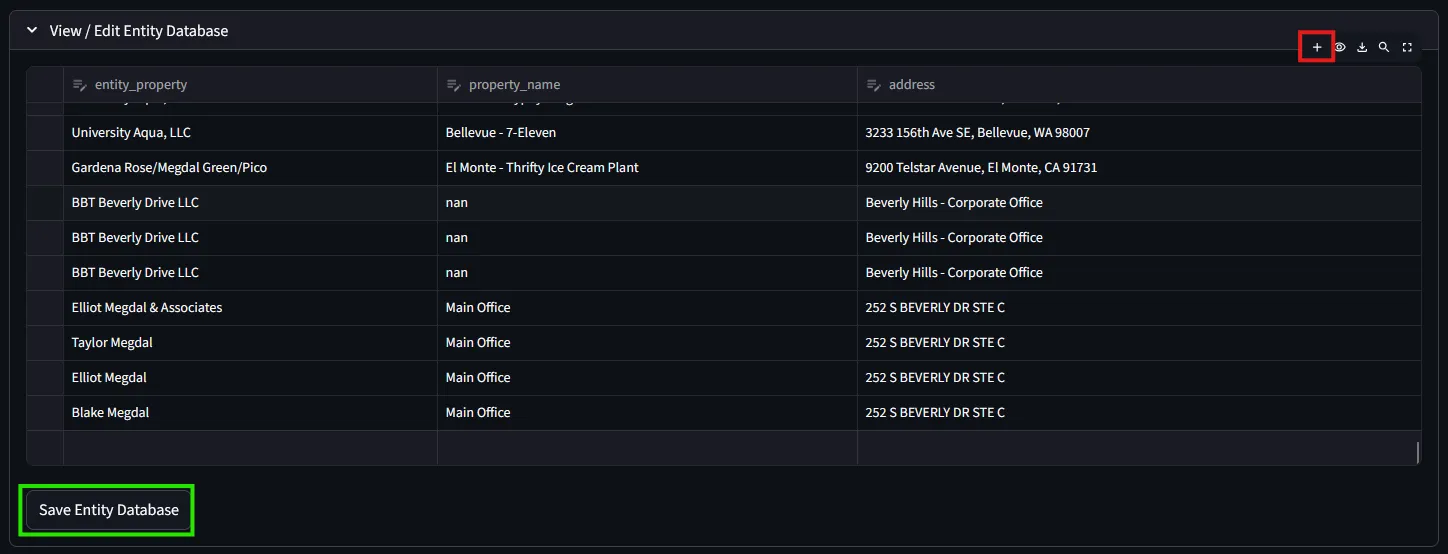
To update the vendor database:
Follow the same process using View / Edit Vendor Database.
After processing, the dashboard displays the PDF preview on the left and extracted details on the right:
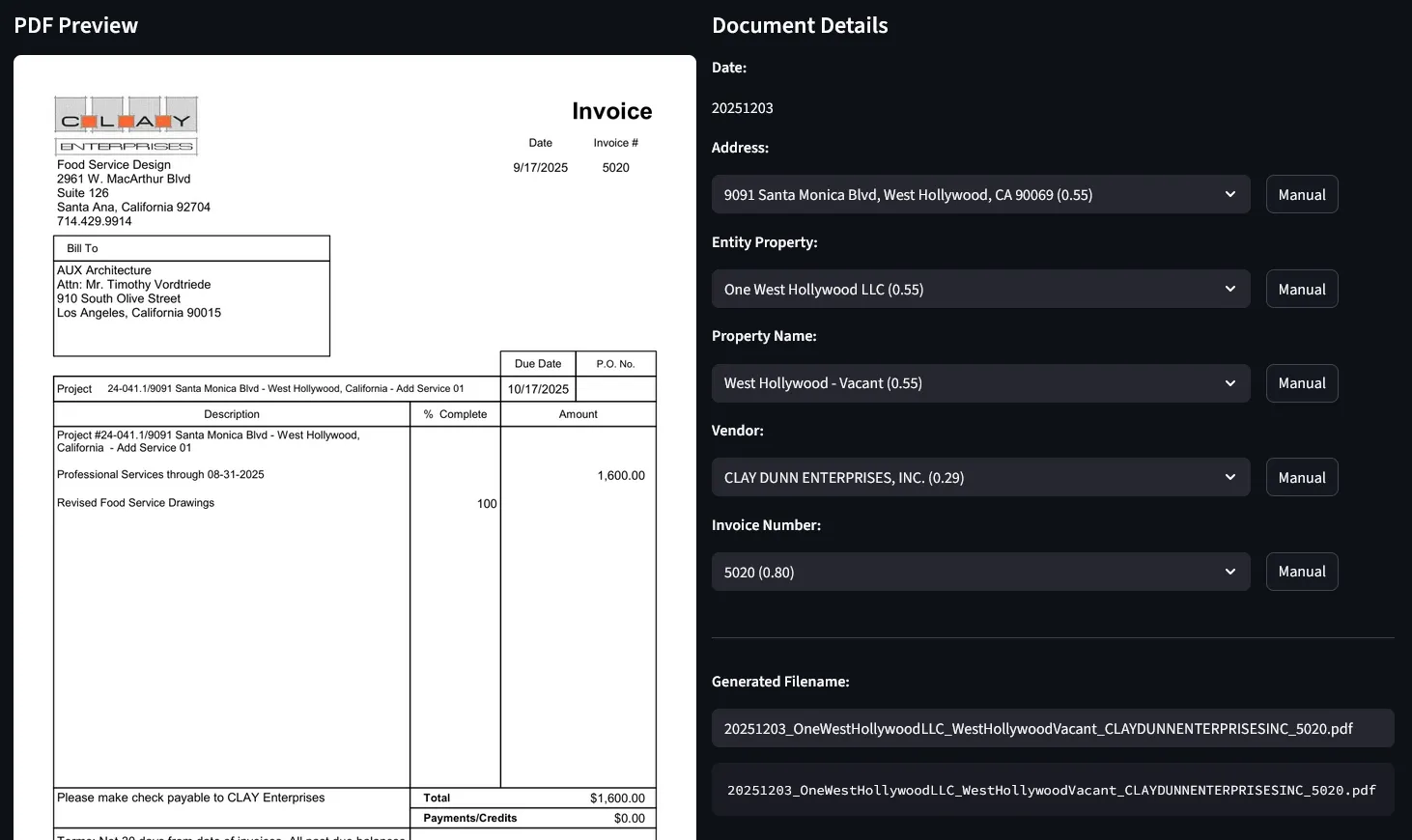
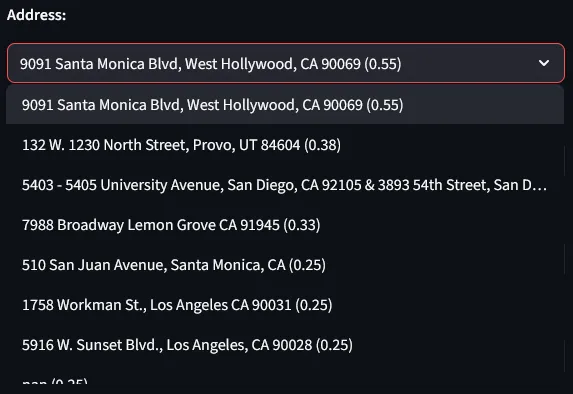
YYYYMMDD format (today’s date if invoice date is unclear)Each field shows a dropdown with the best matches. The confidence score appears in parentheses. e.g. (0.55) means 55% confidence.
Address matching:
The most efficient approach is to search by address. Begin typing in the address dropdown. The system will auto-populate Entity Property and Property Name when you select a match.
Invoice number matching:
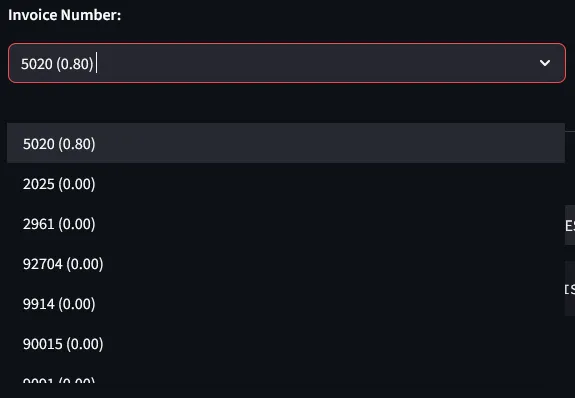
If confidence is low, the invoice number field will be blank. If detected, it auto-selects the best match. If wrong, review other options in the dropdown:
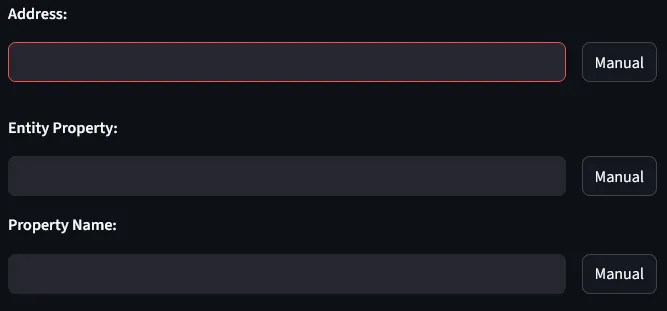
Click Manual next to any field to override automatic detection.
PDF Navigation
Use Previous and Next to move between uploaded PDFs. Changes save automatically.
Remove PDF removes the current file from the processing stack but does not delete it from your hard drive.
Page Navigation
Navigate through pages within multi-page PDFs using the ◀ and ▶ buttons.
Use this to verify invoice details across multiple pages.
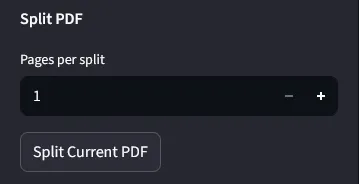
Split multi-page PDFs into separate documents for individual processing. This is useful when multiple invoices are combined in a single PDF file.
How to split:
2 to split every 2 pages)Example: A 6-page PDF split every 2 pages creates:
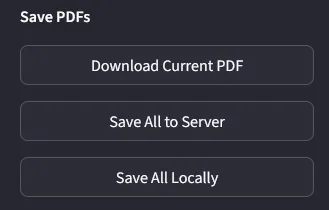
Download Current PDF: Save the currently displayed invoice with its generated filename to your browser downloads.
Save All to Server: Batch save all processed invoices to the server default location: Z:\Shared\Scans\INVOICES\renamed_pdfs.
Save All locally: Batch save all processed invoices to your Documents folder at Documents\renamed_pdfs.
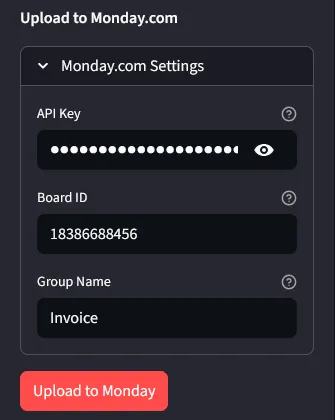
Upload all processed invoices to Monday.com in one action:
All invoices in the processing stack upload to the AP folder in the specified group.