Invoice Preprocessing
The PDF preprocessor automates invoice renaming using OCR, entity matching, Monday.com integration, and batch file saving. Upload invoices, review extracted data, and save or upload directly to Monday.com.
Processing Invoices Workflow
-
Upload PDFs
Drag multiple PDF files into the upload box or click Browse files. -
Click Process PDFs
The system extracts data using OCR and matches against your databases. Give it time to load, processing multiple files takes a moment. -
Review Results
Each PDF shows a preview and extracted details. -
Saving Results
Single/Batch save multiple documents into folder or upload to Monday.com.
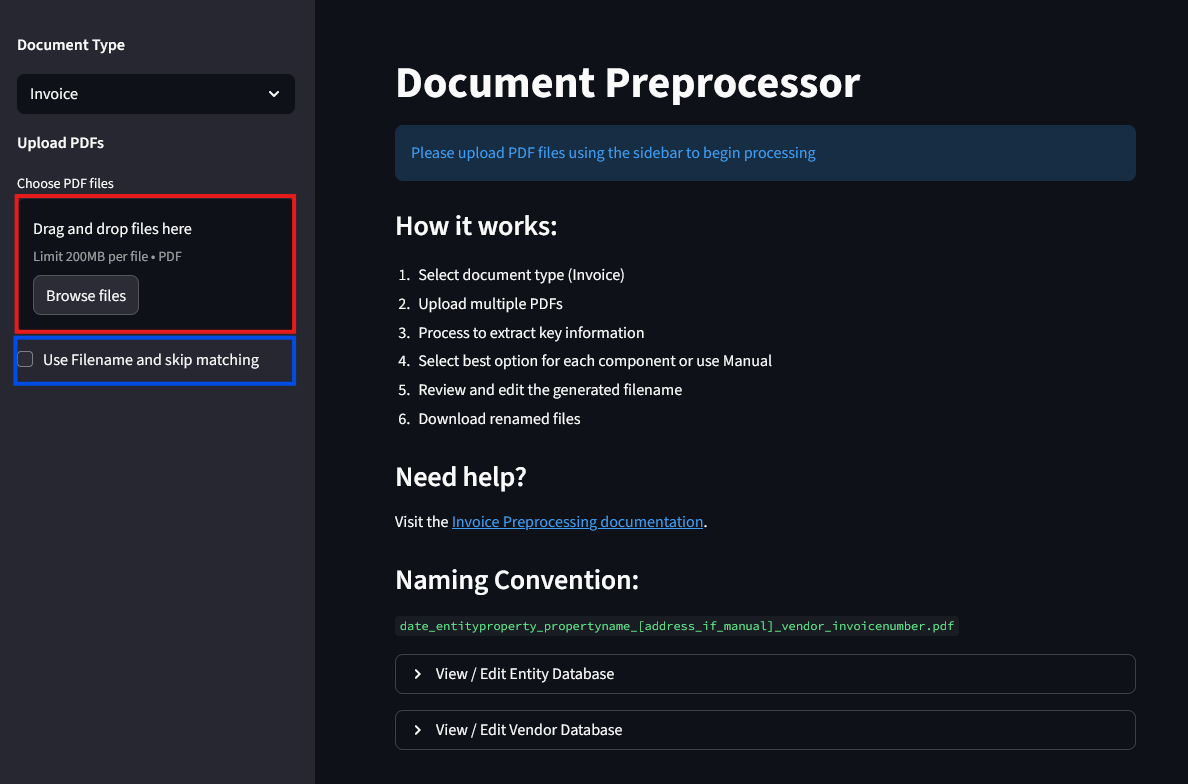
Updating the Vendor Database
In addition to the entity database, invoice processing uses a vendor database.
To update the vendor database:
- Click View / Edit Vendor Database dropdown
- The editor shows vendor names and matching patterns
- Click the + button (top right) to add a new entry
- Edit existing entries by clicking into the cells
- Click Save Vendor Database to save changes
Reviewing and Correcting Results
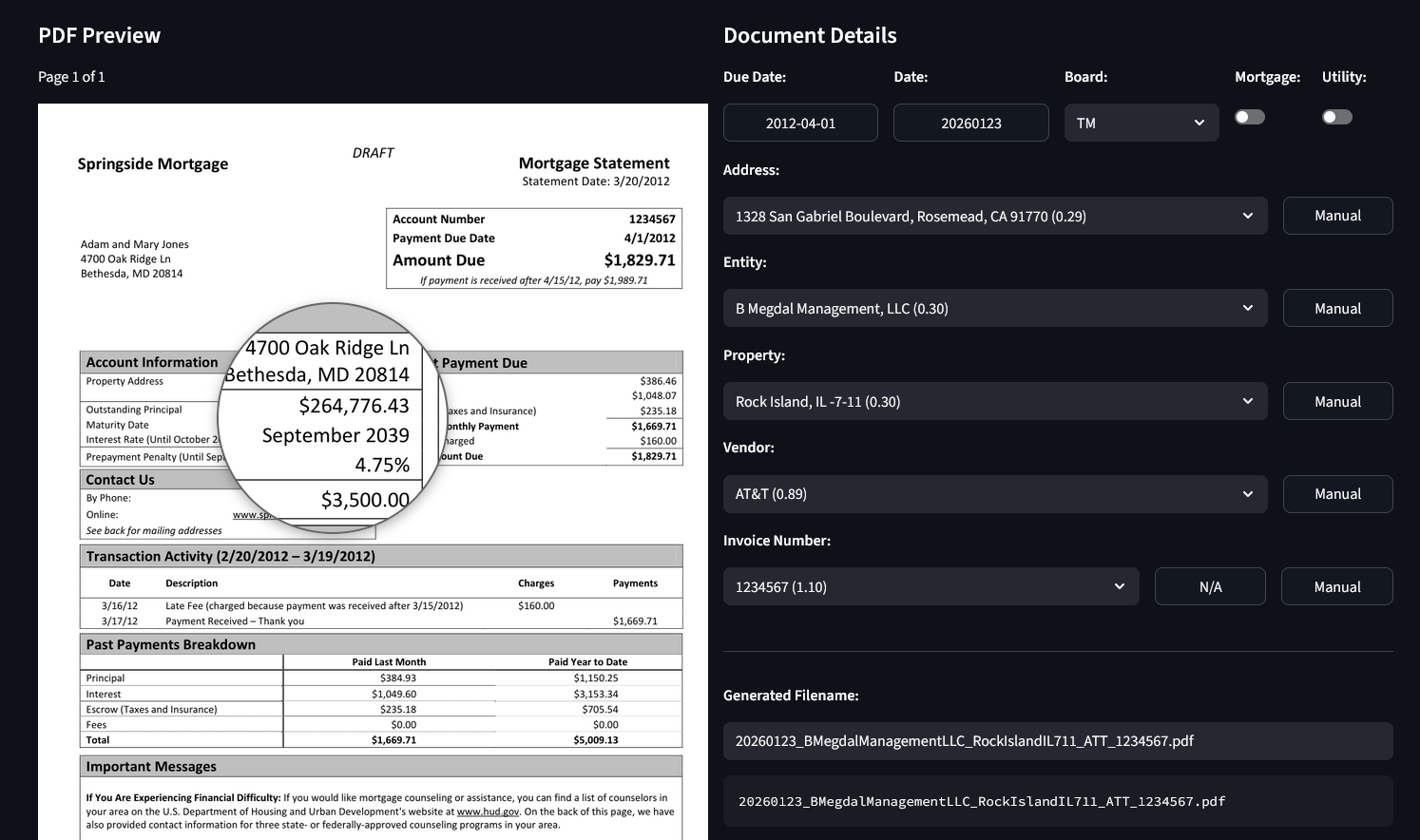
After processing, the dashboard displays the PDF preview on the left and extracted details on the right:
Fields Explained
- Due Date: Invoice due date extracted from the invoice (submitted to Monday)
- Date: Extracted in
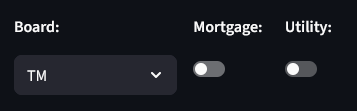
YYYYMMDDformat (today’s date if invoice date is unclear) - Board: Monday.com board assignment based on property owner from entity database
- Mortgage: Toggle for mortgage-related invoices (auto-detected)
- Utility: Toggle for utility invoices (flags vendor as utility provider)
- Address: Property address extracted from the invoice
- Entity Property: Legal entity that owns or manages the property
- Property Name: Building or tenant name
- Vendor: Service provider or vendor name
- Invoice Number: Invoice ID from the document
Board Assignment
The Board dropdown auto-selects based on the property owner from the entity database. When you select an address, the system looks up the owner and assigns the corresponding Monday.com board.
This ensures invoices route to the correct Monday board when uploaded. You can manually override the board selection if needed.
Mortgage Detection
The Mortgage toggle uses a two-step detection system:
-
Address + Vendor combo check: The system maintains a database of known mortgage combinations. When an invoice matches a saved address/vendor pair, it flags as a potential mortgage.
-
Keyword verification: The system scans the document for mortgage-related keywords (e.g., “mortgage”, “escrow”). Both checks must pass for auto-flagging.
When you manually enable the Mortgage toggle, the address/vendor combination saves to the mortgage database. Future invoices with that same combo will auto-flag as mortgage.
Mortgage invoices check the Mortgage column in the Monday.com AP Board when uploaded.
Utility Vendor Detection
The Utility toggle marks vendors as utility providers. When checked:
- The vendor saves to the vendor database with a utility flag
- Future invoices from that vendor auto-enable the Utility toggle
- Utility invoices check the Utility column in Monday.com when uploaded
Using Dropdowns to Correct Data
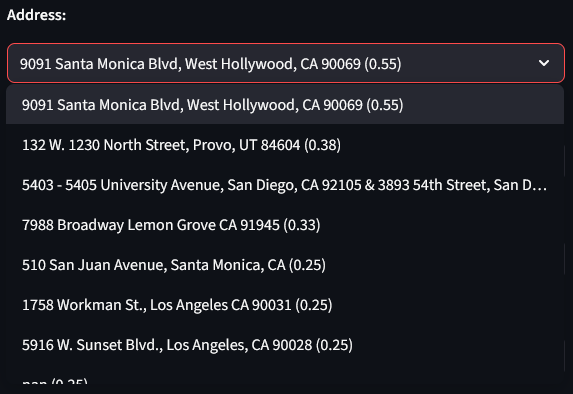
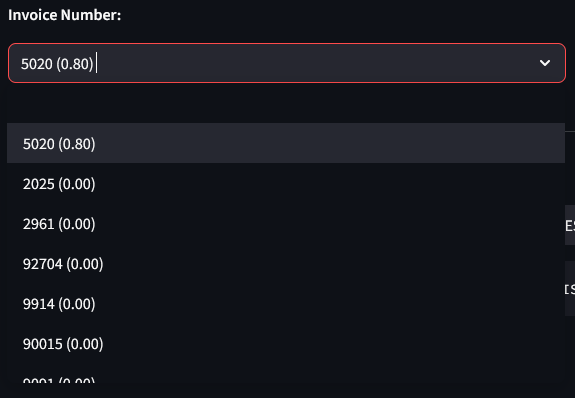
Each field shows a dropdown with the best matches. The confidence score appears in parentheses. e.g. (0.55) means 55% confidence.
Due date matching:
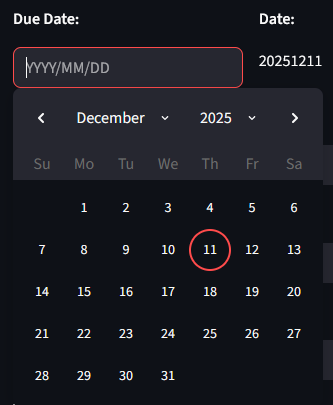
Due dates are automatically extracted from the invoice using keywords. Click on the date box to change the extracted date. The calendar picker allows you to select the correct due date if the automatic extraction is incorrect.
Leave the field blank if the invoice has no due date. The due date is submitted to Monday.com when uploading invoices.
Address matching:
The most efficient approach is to search by address. Begin typing in the address dropdown. The system will auto-populate Entity Property, Property Name, and Board when you select a match.
Invoice number matching:
If confidence is low, the invoice number field will be blank. If detected, it auto-selects the best match. If wrong, review other options in the dropdown:
Invoice-Specific Manual Overrides
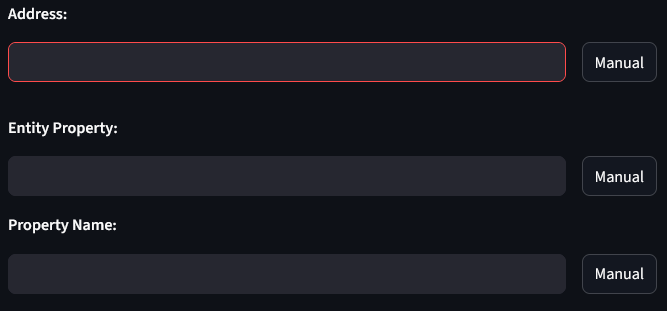
- Address manual override: Clears entity property and property name, using only the manually entered address.
- New vendor override: Manual vendor override automatically creates a new vendor entry in the vendor database.
- Generated filename override: The text box under Generated Filename can also be edited directly. Any edits here take precedence over all other fields.
Split PDF
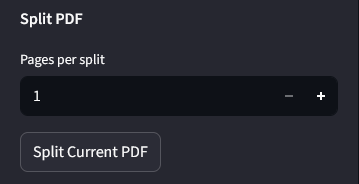
Split multi-page PDFs into separate documents for individual processing. This is useful when multiple invoices are combined in a single PDF file.
How to split:
- Enter the number of pages per split (e.g.,
2to split every 2 pages) - Click Split Current PDF
- The system creates new PDFs and processes each one automatically
Example: A 6-page PDF split every 2 pages creates:
- PDF 1: Pages 1-2
- PDF 2: Pages 3-4
- PDF 3: Pages 5-6
Server Save Location
Invoice files save to different locations based on property management type:
Properties managed by EMA
Z:\Shared\BBT Asset Management Inc\Accounting\In_House_Accounts_Payables\Properties managed by third parties (e.g., Melissa)
Z:\Shared\BBT Asset Management Inc\Accounting\Third_Party_Manager_Accounts_Payables\Upload to Monday.com
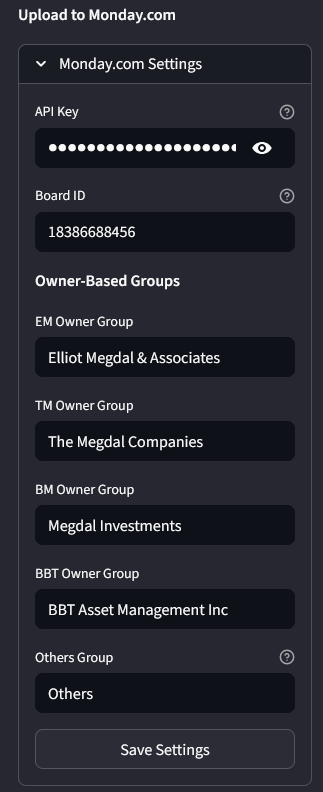
Upload all processed invoices to Monday.com in one action:
- Expand Monday.com Settings
- Enter your API key, Board ID, and Group Name (default: “Invoice”)
- Click Upload to Monday
All invoices in the processing stack upload to the AP folder in the specified group. The Board field determines which Monday.com board receives each invoice, allowing batch uploads across multiple boards.