Leasing Preprocessing
The Document Preprocessor automates leasing document renaming using OCR, LLM-based document type detection, property matching, and batch file saving. Upload lease documents, review extracted data, and save to the appropriate property folders.
Processing Leasing Documents
-
Select Document Type
Choose Lease from the Document Type dropdown in the sidebar. -
Set Batch Property (Optional)
If all documents belong to the same property, select it from the Property Batch Process dropdown before uploading. This applies the selected property to all uploads. -
Upload Documents
Drag PDF or DOCX files into the upload box or click Browse files. -
Review Results
Each document shows a preview and extracted details including date, document type, and property name. -
Save Results
Save documents to the server or locally using the sidebar options.
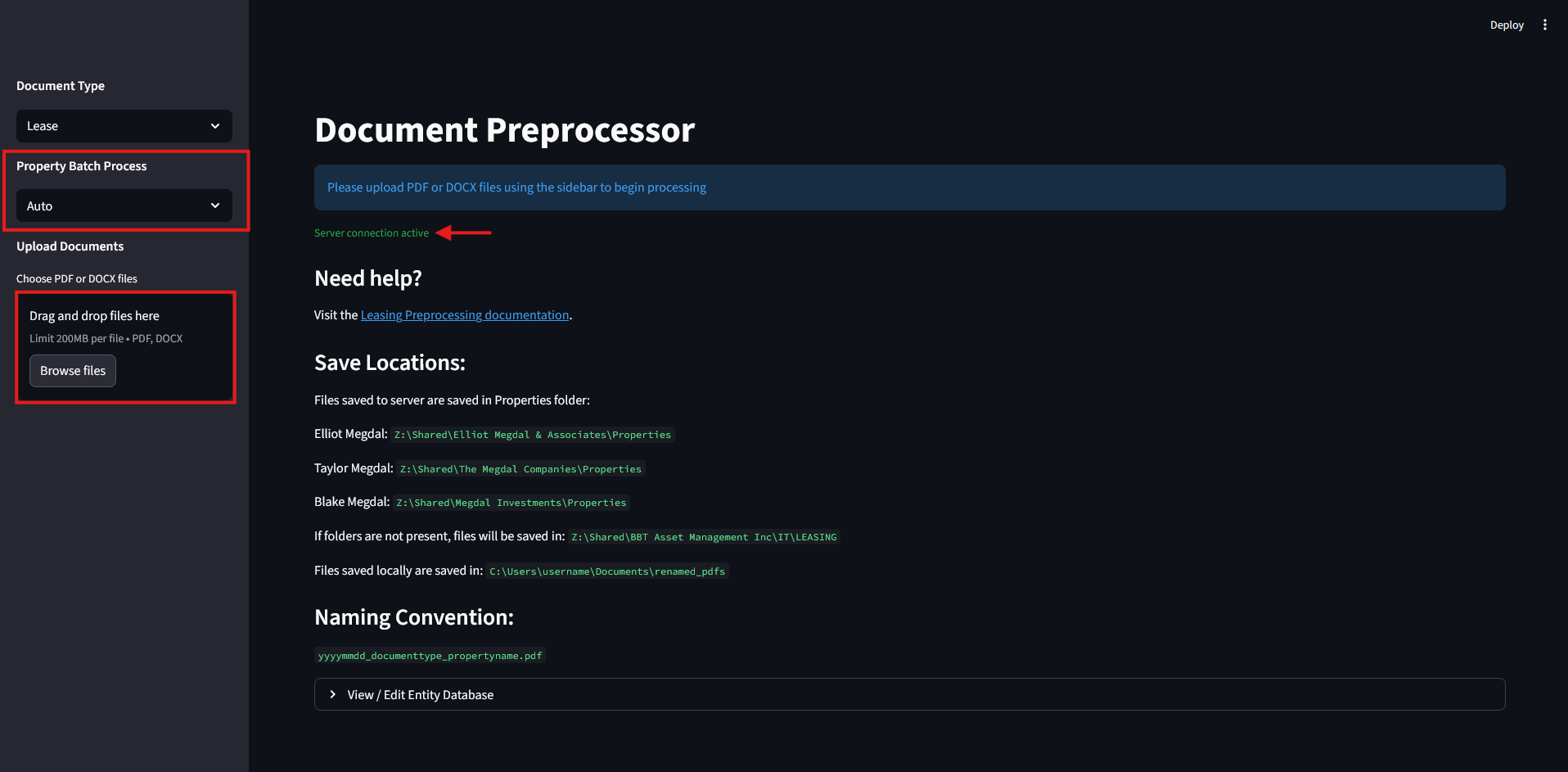
Property Batch Process
Use the Property Batch Process dropdown when processing multiple documents for the same property.
How it works:
- Set to Auto for the system to detect properties individually
- Select a specific property to apply it to all documents in the batch
- Can be changed before or after uploading documents
- All existing documents in the stack update to the selected property
This saves time when scanning a property’s lease folder containing multiple document types.
Reviewing and Correcting Results
After processing, the dashboard displays the PDF preview on the left and document details on the right:
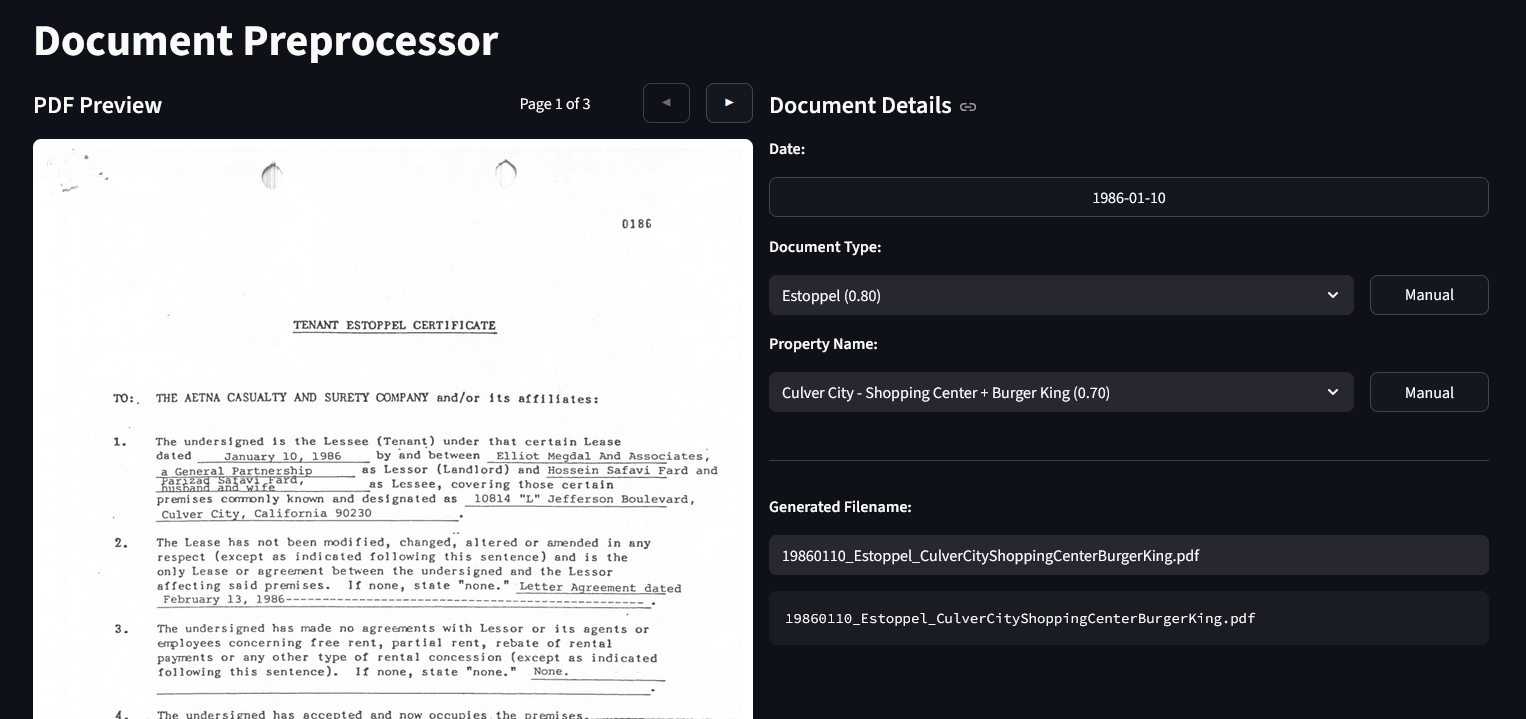
Fields Explained
- Date: Extracted in
YYYY-MM-DDformat from document content - Document Type: LLM-detected classification (lease, amendment, estoppel, etc.)
- Property Name: Matched property from the entity database
- Generated Filename: Auto-generated using format
yyyymmdd_documenttype_propertyname.pdf
Using Dropdowns to Correct Data
Each field shows a dropdown with matches. The confidence score appears in parentheses (e.g., 0.80 means 80% confidence).
Date selection:
Click on the date button to open a calendar picker. Select the correct date if the automatic extraction is incorrect.
Document type matching:
The system uses an LLM to classify documents. Common types include:
- Lease Abstract
- Amendment
- Estoppel
- Renewal
- Termination
- Sublease
Select from the dropdown if the detected type is incorrect. The system learns from your corrections.
Property matching:
Select the correct property from the dropdown. When selected, the generated filename updates automatically.
Leasing-Specific Manual Overrides
- Document type manual override: Enter a custom document type not in the dropdown
- Property manual override: Enter a property name manually for properties not in the database
Learning from Corrections
The system learns from your corrections to improve future accuracy.
What it tracks:
- Document type corrections (predicted vs. actual)
- Header patterns associated with document types
- Text signatures for classification
Classification Reasoning:
Expand the Classification Reasoning section under the document details to see why the system chose a particular document type.
Server Save Locations
Files saved to server are organized by owner in the Properties folder:
| Owner | Server Path |
|---|---|
| Elliot Megdal (EM) | Z:\Shared\Elliot Megdal & Associates\Properties |
| Taylor Megdal (TM) | Z:\Shared\The Megdal Companies\Properties |
| Blake Megdal (BM) | Z:\Shared\Megdal Investments\Properties |
Naming Convention
All saved files follow the format:
yyyymmdd_documenttype_propertyname.pdfExample: 19860110_Estoppel_CulverCityShoppingCenterBurgerKing.pdf