PDF Splitter
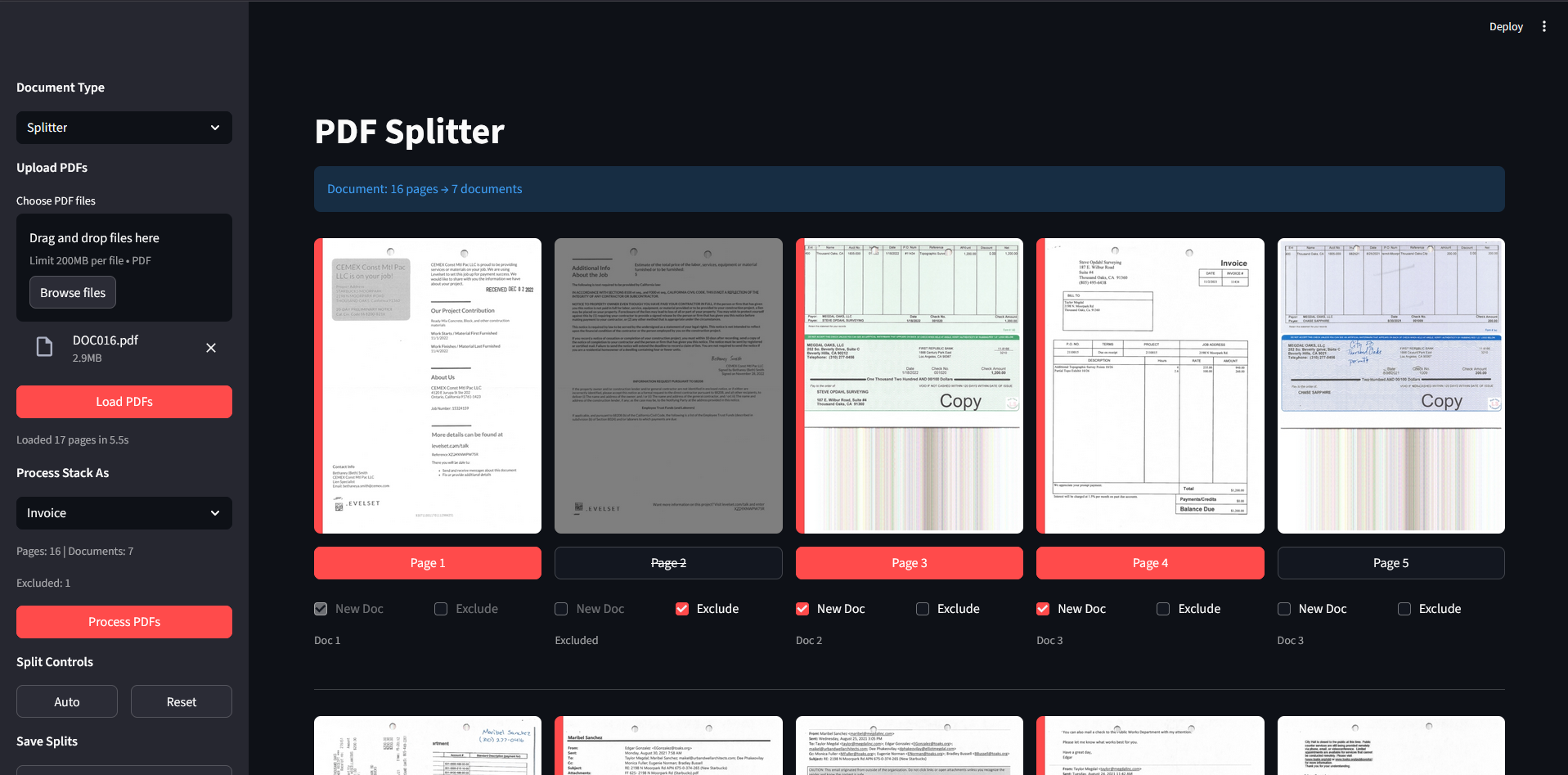
The PDF Splitter separates multi-document PDFs into individual files before processing. Upload a scanned batch, mark document boundaries, then send splits to Invoice or Lease workflows.
Splitting Documents Workflow
-
Select Splitter Mode
Choose Splitter from the Document Type dropdown in the sidebar. -
Upload PDFs
Drag PDF files into the upload box or click Browse files. -
Click Load PDFs
The system loads all pages and auto-detects document boundaries. -
Review and Adjust Splits
Toggle New Doc checkboxes to mark where each document begins. Exclude pages as needed. -
Process or Save
Send splits to Invoice/Lease processing or save directly to local folder.
Sidebar Controls
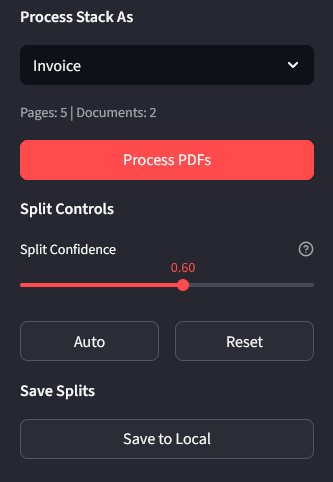
Process Stack As
Select the target workflow for split documents:
- Invoice: Sends splits to Invoice Preprocessing for OCR and vendor matching
- Lease: Sends splits to Lease Preprocessing for document type detection
The status line shows current page count, document count, and excluded pages.
Split Controls
- Split Confidence: Adjusts the threshold for automatic boundary detection. Drag the slider to change sensitivity:
- Lower values: More splits detected, catches subtle document boundaries
- Higher values: Fewer splits detected, only high-confidence boundaries
- Auto: Re-runs automatic document boundary detection
- Reset: Clears all split markers (returns to single document)
Save Splits
Save to Local: Saves all split documents to Documents\split_docs folder. Files are named originalname_split1.pdf, originalname_split2.pdf, etc.
Page Grid Controls
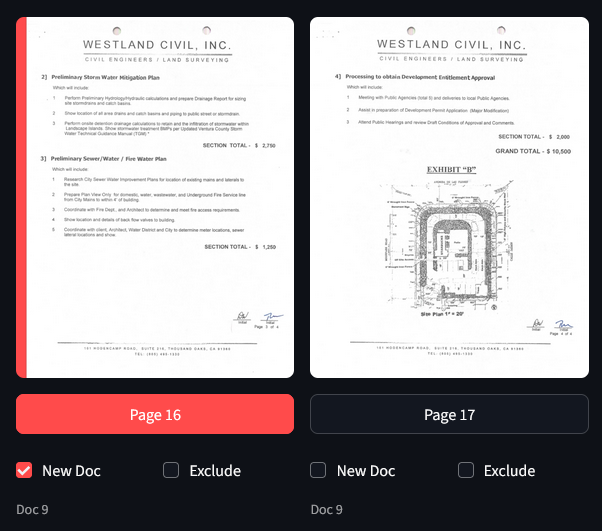
Each page displays a thumbnail with controls below:
Page Preview
Click the thumbnail or Page # button to open a larger preview. This helps verify page content before splitting.
New Doc Checkbox
Marks the start of a new document. When checked:
- A red line appears on the left edge of the thumbnail
- The page button turns red
- All following pages belong to this document until the next split
The first page is always marked as a new document and cannot be unchecked.
Exclude Checkbox
Removes a page from processing without deleting it from the original file. Excluded pages:
- Appear grayed out
- Show a crossed out
Page # - Are skipped when saving or processing splits
Use this for blank pages, cover sheets, or pages that don’t belong in any document.
Document Number
Below each page, Doc # indicates which split document the page belongs to. This updates automatically when you toggle New Doc or Exclude checkboxes.
Auto-Detection
The system automatically detects document boundaries when loading PDFs. Detection looks for:
- Significant visual changes between pages
- Common first-page patterns (letterheads, headers)
- Page layout differences
After auto-detection, review the splits and adjust manually as needed.
Processing Split Documents
After marking splits, click Process PDFs to send documents to the selected workflow:
- Excluded pages are removed from the stack
- Each split becomes a separate PDF
- The target workflow (Invoice or Lease) opens with the split documents loaded
- Process each document normally in the target workflow
Save Locations
Split files save to: Documents\split_docs
Files use the naming pattern: {original_filename}_split{number}.pdf
Example: DOC016.pdf split into 3 documents creates:
DOC016_split1.pdfDOC016_split2.pdfDOC016_split3.pdf