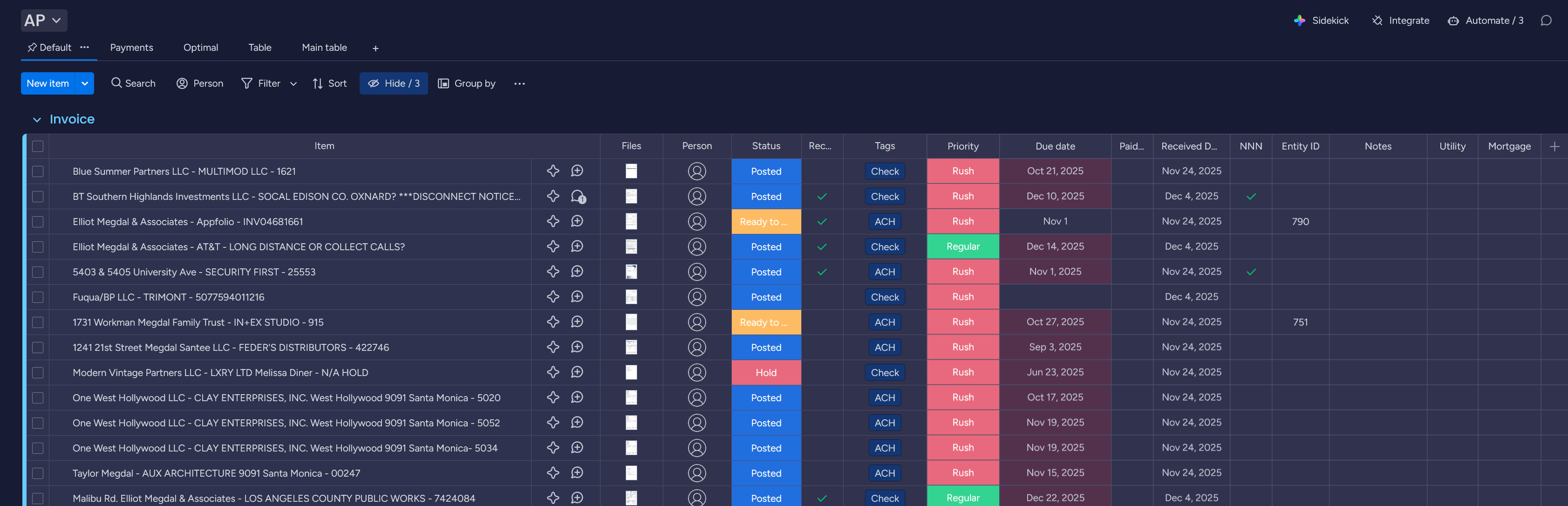
This workflow covers the complete accounts payable process from invoice receipt through payment confirmation. All invoices flow through the Python dashboard for preprocessing before upload to Monday.com for tracking and approval.
Received Date: Date invoice was scanned and processed through the dashboard
Files: Attached invoice PDF and backup documentation
NNN: When checked the payment is eligible for reimbursement
Entity ID: Reference number for MRI
Notes: Additional comments or context about the invoice
Utility: Checked when invoice is for a utility bill
Mortgage: Checked when invoice is for a mortgage payment
Table Views
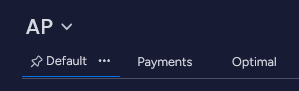
The AP Board has three table views for different workflow stages:
Default: Main working view showing all active invoices in processing
Payments: View for completed payments. Click the Paid button on any invoice to mark it as paid and it will automatically set the paid date to today
Optimal: Filtered view for Optimal (bookkeeper) showing invoices ready to post
Initial Invoice Processing
Scan hard copy invoices
Front Desk and Office Manager scan all hard copy invoices immediately upon receipt. If more than 20 invoices arrive in a single day, delegate scanning to Data Management for assistance.
Save invoice scans
All scanned invoices save to Z:\Shared\Scans\INVOICES immediately after scanning. Digital invoices received via email also save to this location.
Run invoices through Python dashboard
Process the day’s invoices through the Invoice Preprocessor at end of day. Complete all naming verification steps before moving to upload.
Upload to Monday.com
Upload all processed invoices to Monday.com at end of day or use the Invoice Preprocessor to batch upload the invoices.
Invoice Classification and Workflows
Invoices fall into two categories with different approval requirements. Use the tabs below to understand each workflow.
Non-recurring invoices and exceptions require review before booking.
Set status
Front Desk and Office Manager set status to Awaiting Approval
Set due date
Enter the payment deadline from vendor terms
Set priority
Mark as Regular or Rush based on due date and urgency
Thursday AP meeting review
Invoice goes to Thursday AP Meeting with backup documentation attached
Approval decision
President of Asset Management or Property Controller reviews and either:
Marks Ready to be Posted
Sets Hold and adds comments for team to resolve issues
Optimal posts
Optimal posts to accounting system and changes status to Posted
Controller processes payment
Controller initiates ACH transfers and check signing during Thursday AP Meeting
Controller provides check register
Controller provides the check register to the Office Manager after processing payments
Office Manager confirms payment and mails checks
Office Manager clicks the Click when paid button for each invoice, then mails the checks
Utility and recurring invoices follow a end-of-month process.
Upload to Monday.com
Utility invoices stay on the Monday AP board with status set to Awaiting Approval
End-of-month processing
In-home accounting will post, pay, and mark as Paid at end of month with bank reconciliation
Status and Tag Management
The status column tracks each invoice through the approval and payment process, while tags classify invoices by payment method.
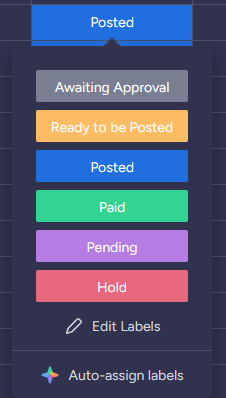
Status Options
Awaiting Approval Invoice needs management or owner review before posting.
Ready to be Posted Invoice is approved and ready for bookkeeper to post to accounting system.
Posted Bookkeeper has posted the invoice to accounting system (MRI).
Paid Payment has been processed. System automatically enters paid date and removes from active view after 2 weeks.
Pending Invoice is waiting for additional information or clarification before processing can continue.
Hold Invoice flagged by management during review. Check comments for required action before proceeding.
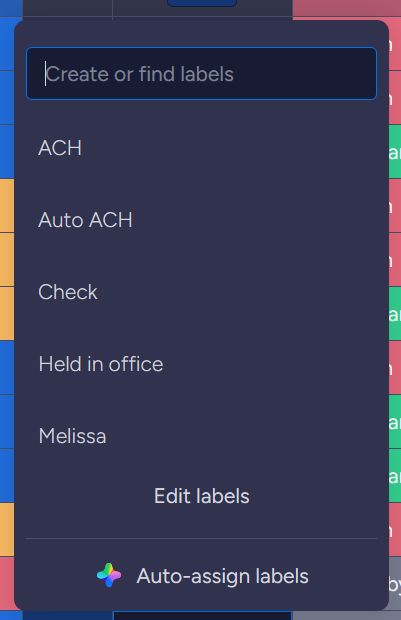
Tag Options
Optional
ACH Electronic payment processed through bank transfer.
Auto ACH Auto-Pay electronic payment processed through bank transfer.
Check Payment issued via physical or digital check.
Held in Office Physical check held at office location for vendor pickup.
Melissa Invoice is associated with Melissa, our third-party property manager.
Priority Levels
Priority determines processing urgency and helps the team manage workload effectively. Set priority based on due date and vendor requirements.
Priority options:
Regular Standard processing timeline, adequate time before due date
Rush Shortened timeline, approaching due date or requiring expedited processing
Key Workflow Principles
Same-day processing: Complete all steps for invoices received each day before end of business. This prevents backlogs and maintains accurate received dates.
Consistent status updates: Each team member updates status when completing their assigned task. This keeps the entire team informed of invoice progress.
Documentation for review items: Always attach backup documentation to invoices requiring approval. Management cannot approve without supporting materials.
Thursday AP meeting rhythm: All require review items go to Thursday meetings. This creates predictable approval cycles and prevents delays.
Payment confirmation: Controller confirms all payments weekly during Thursday AP meeting. This maintains accurate records and identifies any payment failures quickly.