Sharing Files
Use Egnyte to share files with internal and external recipients. By default, shared links require a password and expire after 30 days. When a file must stay private, share only with existing users or specific people (external recipients will not have access in that mode).
Steps: Create a Share Link
-
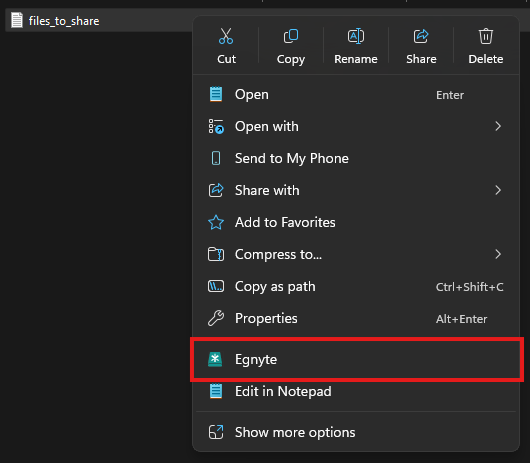
In File Explorer, right-click the file or folder and choose Egnyte.
-
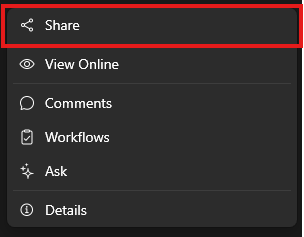
Click Share.
-
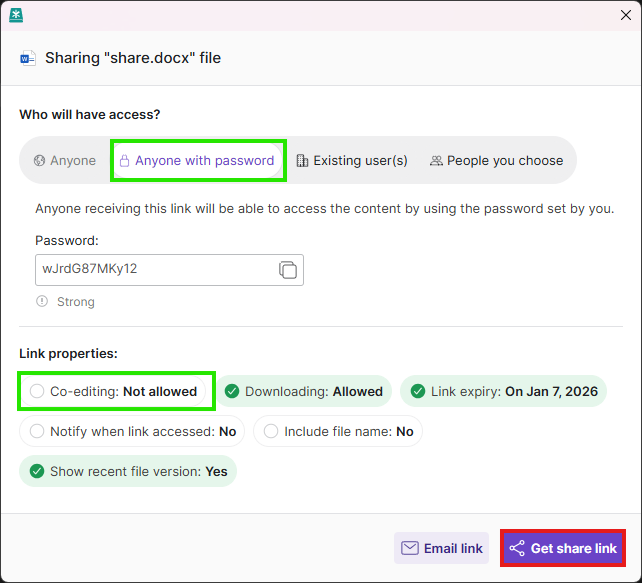
In the Share window, confirm Anyone with password is selected, set or confirm the password, and ensure expiry is set to 30 days (adjust if needed).
If co-editing is enabled, users can open and edit the file in their own Microsoft Office apps. Changes sync back to Egnyte in real time.
-
Click Get share link (or Email link if sending directly). Link and password will be copied to Clipboard.
Steps: Private/Internal Sharing
-
Follow steps 1–2 above to open the Share window.
-
Choose Existing user(s) or People you choose. Only the selected internal users will have access; people outside the company cannot open the link.
-
Set expiry as needed (still use 30 days by default) and keep downloading allowed unless restricted.
-
Click Get share link or Email link.
In the Co-Editing Session
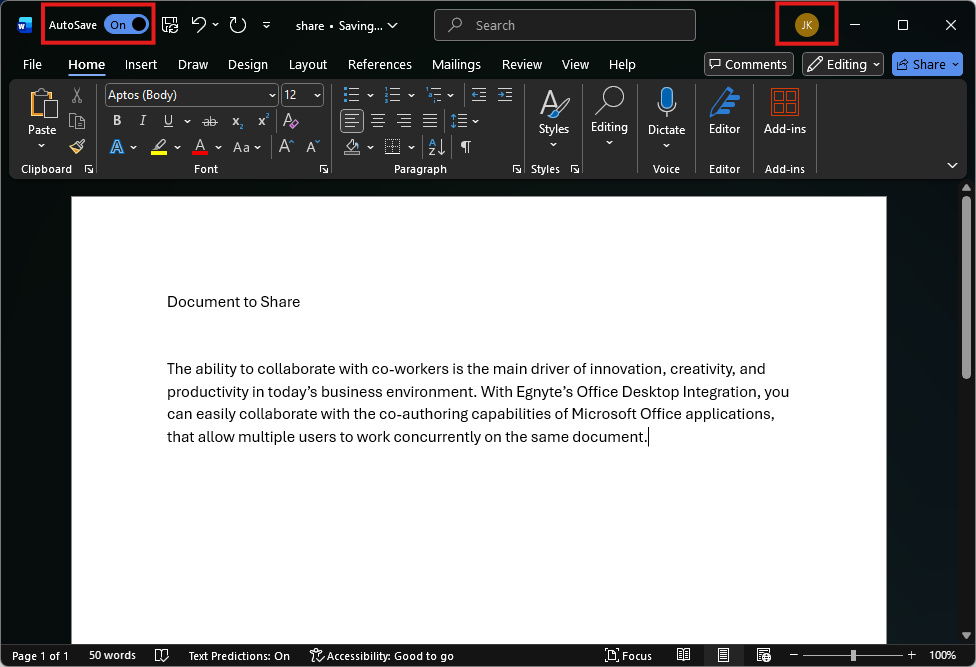
Auto-Save is ON automatically on the left side. This means the document is in co-editing mode. If Auto-Save is OFF, the user is working offline and changes will not save to Egnyte.
On the right side of the screen, you can see users in the Co-Auth gallery. All co-editing users must make sure the top progress bar shows that changes are saved back to Egnyte.