

Documents
Leases, amendments, estoppels, notices and other property paperwork show on the Automatic and Document pages. Click a card to open it.
The Document Card
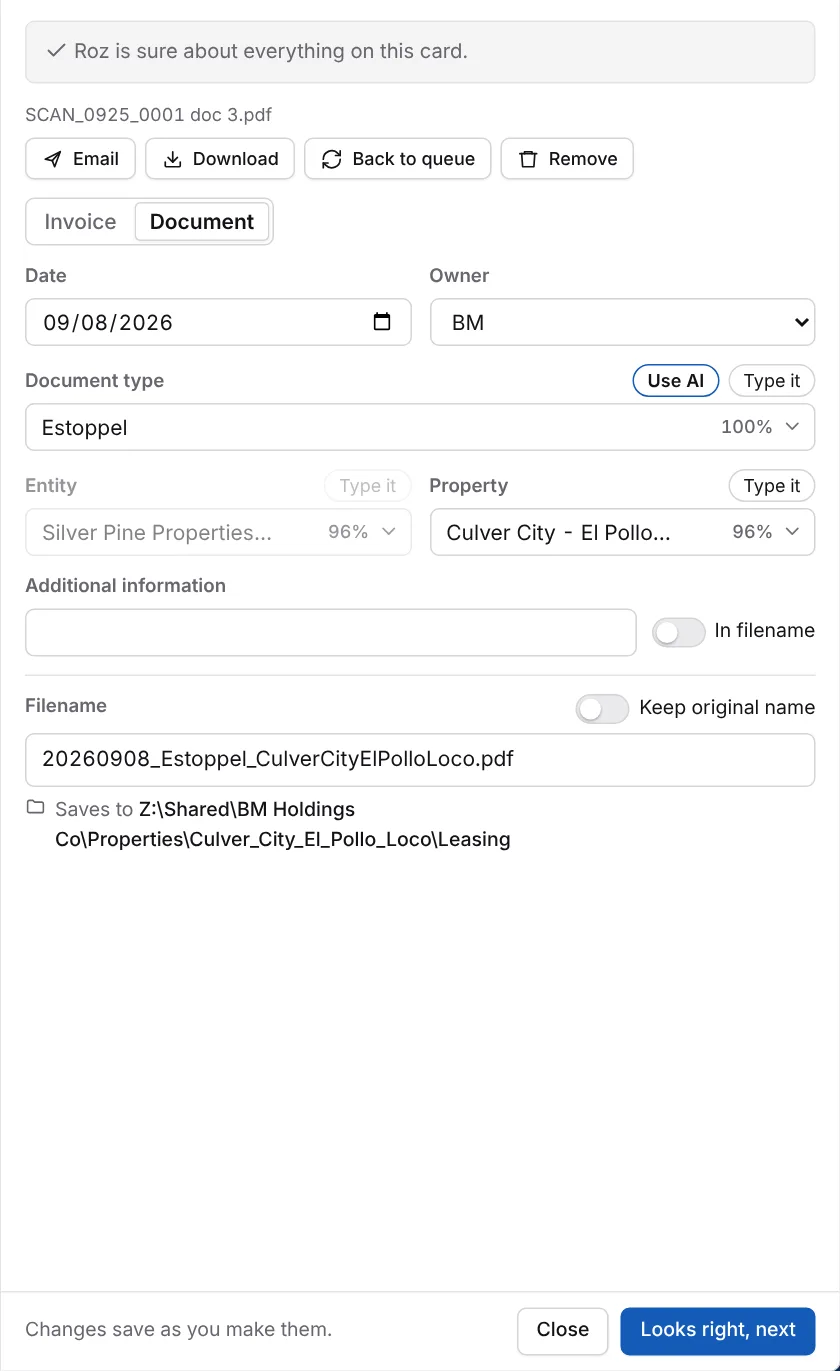
| Field | What it is |
|---|---|
| Date | The date on the document. If none is found, Roz uses today. |
| Owner | The owner group: EM, TM or BM. It picks the company folder. |
| Document type | What the document is, such as Estoppel or Second Amendment To Lease. It picks the category folder. |
| Entity | The company that owns the property. |
| Property | The property name. |
| Additional information | Extra detail, such as a tenant or suite. Turn on In filename to add it to the name. |
Some cards show Why this type at the bottom. Click it to see why Roz picked the document type.
On the Automatic page, switch Invoice / Document at the top of the card if Roz read an invoice as a document, or the other way.
Add a New Document Type
Sometimes the right type is not in the list.
- If the AI thinks a new type is needed, the card says The AI suggests a new type. Click Review and add, or Skip. Cards with a suggestion show New type? in the grid.
- To make one yourself, click Use AI next to Document type.
- If you type a type that is not in the list, click Add it as a type.
-
Check the form
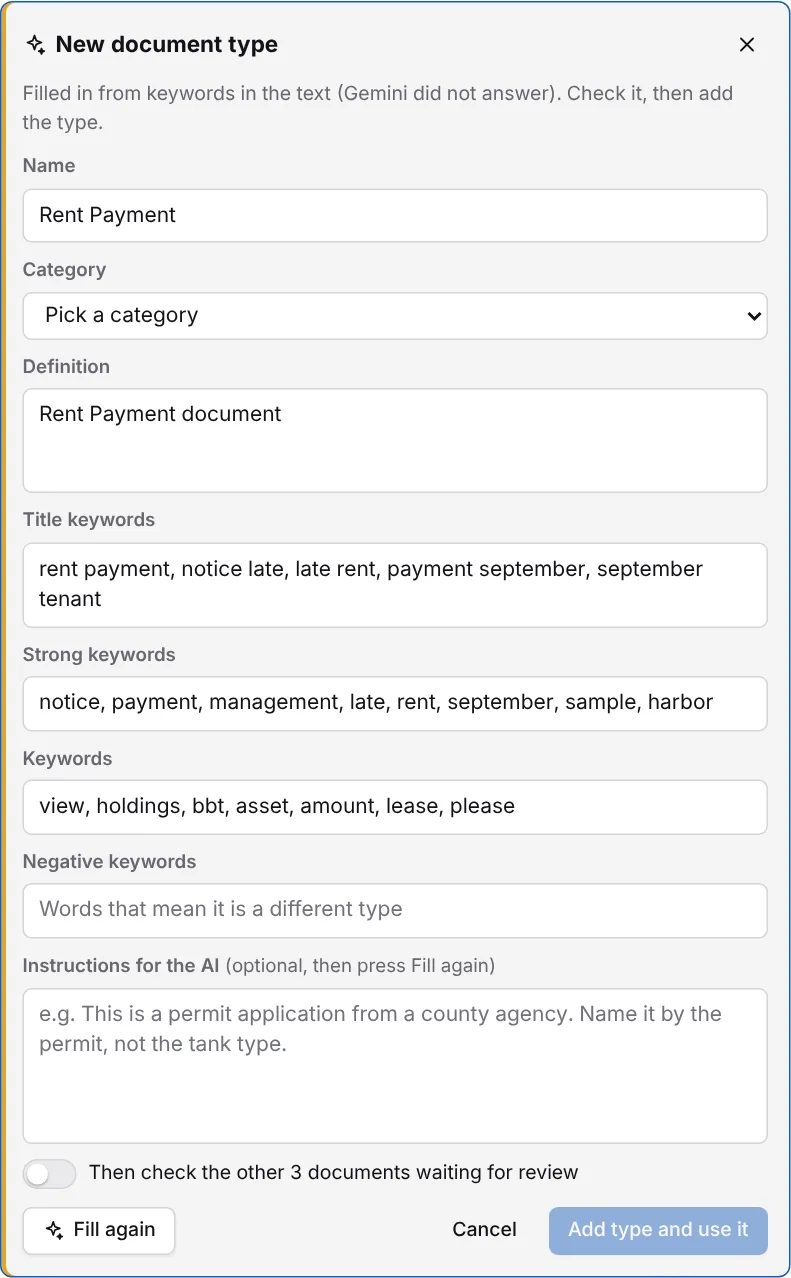
Roz fills in a name, definition and keywords from the document. -
Pick a category
The category decides the folder, such as Leasing or Accounting. -
Fix the keywords if needed
Keywords help Roz spot this type next time. Add Instructions for the AI and click Fill again to redo it. -
Check the other documents (optional)
Turn on Then check the other documents waiting for review. Roz looks for more documents of this new type. It is off the first time. Roz remembers your choice. -
Click Add type and use it
The type is added to the list and set on this document.
The check shows in a notice at the bottom right, with a bar that fills as it goes. Click Stop to cancel it. Only documents nobody has reviewed yet are checked.
When it finds more documents that look like the new type, click Review in the notice. Untick any that are not that type, then click Set on. Each changed card says Set when you added the type. Click Put back on a card to undo it.
If you skip the check, Roz offers it again in a notice after the type is added. Click Check them.
Notices and Task Notices
Document types that start with Notice - or Task Notice - save to a Notices subfolder.
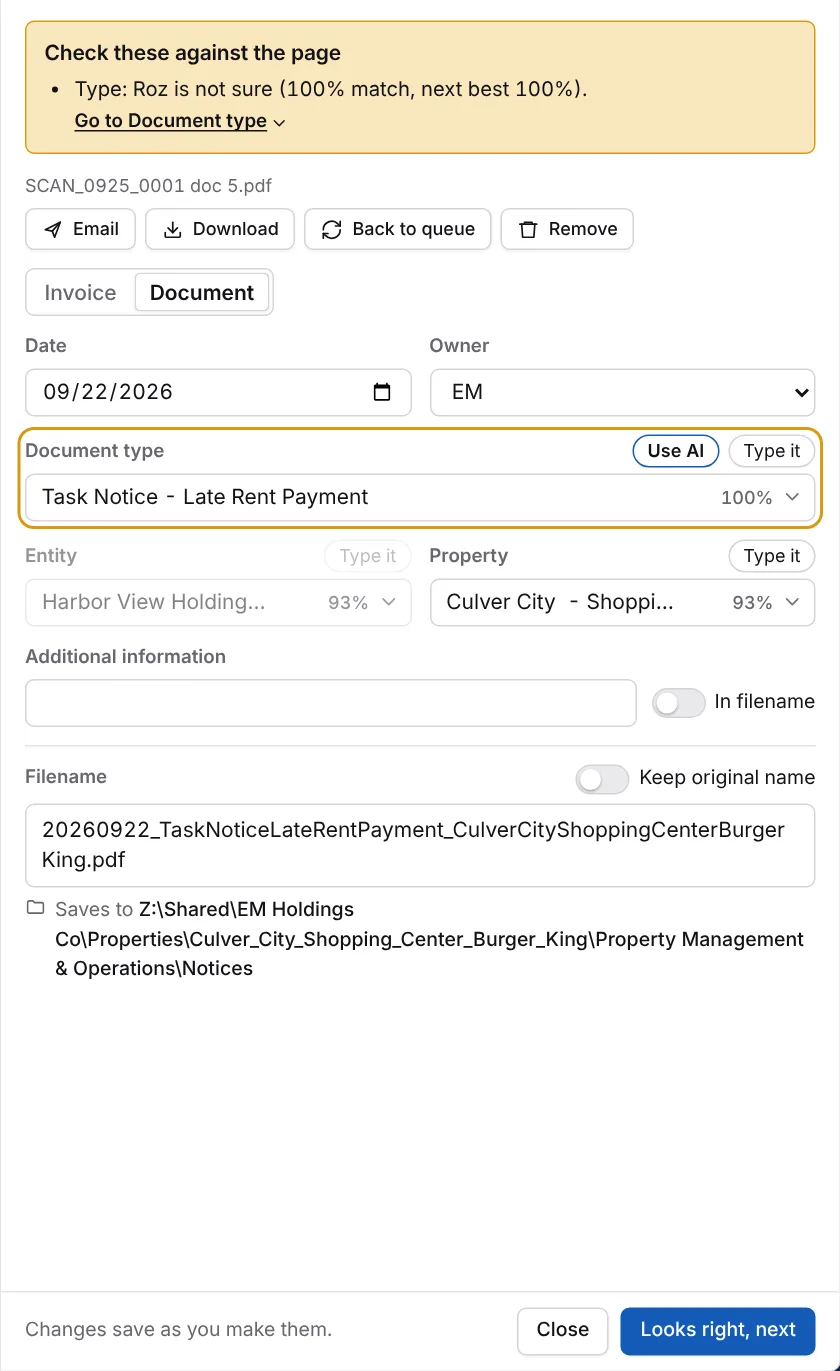
Task notices also go to the Monday M&O board. Turn on Monday in the file bar before you click File. Turn on Assign PM on notices to assign the property manager.
Save Location
Documents save to the property’s folder, in the category of the document type:
Z:\Shared\<Company>\Properties\<Property>\<Category>\| Owner | Company folder |
|---|---|
| EM | Elliot Megdal & Associates |
| TM | The Megdal Companies |
| BM | Megdal Investments |
Example: Z:\Shared\Megdal Investments\Properties\Culver_City_El_Pollo_Loco\Leasing\
The filename follows this pattern:
yyyymmdd_DocumentType_Property.pdfExample: 20260908_Estoppel_CulverCityElPolloLoco.pdf