

Recurring Work Orders
Recurring work orders schedule maintenance that happens on a repeating basis: landscaping, pest control, pool service, gutter cleaning, HVAC filter changes, fire extinguisher inspections. You set it up once and AppFolio posts a real work order on the schedule you pick.
When to Use This
| Situation | Set it up as |
|---|---|
| Monthly landscaping, pool, pest, janitorial | Monthly, all 12 months |
| Quarterly HVAC filters or backflow testing | Monthly, select the 4 months |
| Annual fire inspection, gutter cleaning, roof check | Monthly, select 1 month |
| Unit turn cleaning or re-key | On Move-Out |
| Move-in inspection or filter swap | On Move-In |
| Same job runs at irregular times | Never (Must Post Manually) |
Do not use a recurring work order for one-time jobs. Use + New Service Request on the Work Orders page instead.
Before You Create One
-
Confirm the vendor is active in AppFolio.
A recurring work order cannot create work orders for an inactive vendor. See Vendor Setup. -
Confirm the vendor’s insurance is current.
If Vendor Compliance Control is on, AppFolio blocks the posting when the vendor’s insurance is expired. The schedule stops without warning until the records are updated. -
Know the GL account and the contract amount.
You enter these once and they carry to every bill. Ask Anna or Rachana if the GL account is not obvious. -
Decide per property or per unit.
Per Property creates one work order for the whole property. Per Unit creates one for every unit. Per Unit on a large property creates a lot of work orders.
Create a Recurring Work Order
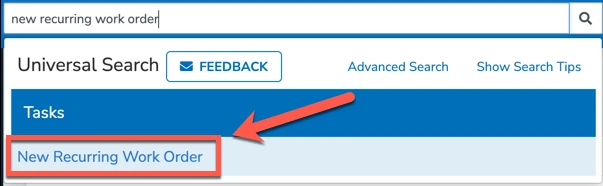
Type New Recurring Work Order into the search bar and select the task. You can also go to Maintenance > Recurring Work Orders, then click New Recurring Work Order in the Tasks menu on the right.
The form has five sections. Fill them top to bottom.
1. Recurrence Information
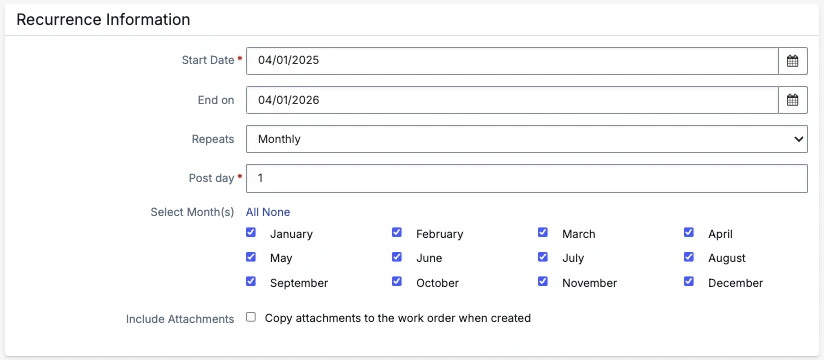
| Field | What to enter |
|---|---|
| Start Date | Required. First date the work order can post. |
| End on | Optional. Leave blank for open-ended contracts. Set it to the contract end date when there is one. |
| Repeats | Monthly, On Move-In, On Move-Out, or Never. See below. |
| Post day | Required for Monthly. The day of the month the work order posts. Pick a day that gives the vendor lead time. |
| Select Month(s) | Which months it posts. All 12 for monthly service, 4 for quarterly, 1 for annual. |
| Include Attachments | Copies the recurring work order’s attachments onto every posted work order. Use it when the vendor needs the contract, scope, or gate map every time. |
Repeat options:
- Monthly: posts on the Post day in every month you check.
- On Move-In: becomes selectable during a move-in and posts once the move-in is completed.
- On Move-Out: becomes selectable during a move-out and posts from there.
- Never (Must Post Manually): never posts on its own. You post it from the Tasks menu when needed.
2. Property Information
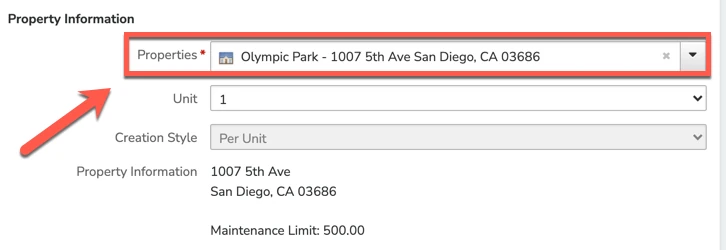
| Field | What to enter |
|---|---|
| Properties | Required. A single property, a property group, or a portfolio. |
| Unit | Only when you picked one property and the work is tied to a specific unit. |
| Creation Style | Per Property for common area and building-wide work. Per Unit for work inside each unit. Per Unit lists the resident on each work order. |
The property’s maintenance limit displays in this section. If the recurring amount is above that limit, get owner approval before saving.
3. Work Order Information
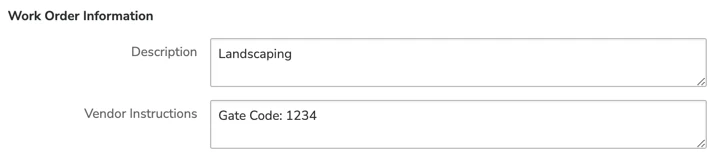
- Description: what the vendor is doing. This becomes the Job Description on every posted work order and shows on the Owner Statement once the bill is paid. Write it so an owner reading a statement understands it. Use
Monthly Landscaping Service, notlandscaping. - Vendor Instructions: gate codes, access notes, on-site contact, where to park. These print on the work order and appear in the emailed copy.
4. Vendor Information
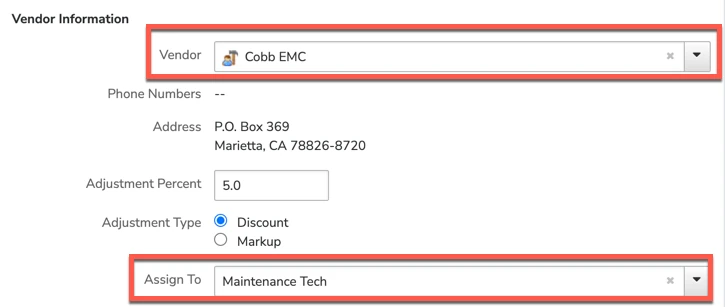
Start typing the vendor or Maintenance Tech name and select it. Their contact information fills in.
- Adjustment Percent and Adjustment Type: only use these when we have a negotiated discount or markup on file. Leave blank otherwise.
- Assign To: the internal user who owns this work. This field is grayed out when the recurring work order is tied to a property group or portfolio.
5. Billing Information
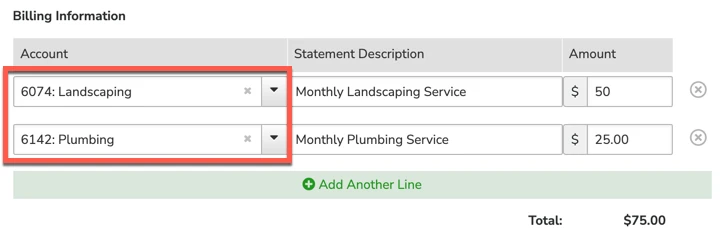
Enter the GL account, an optional Statement Description for the Owner Statement, and the amount. Click Add Another Line for jobs that split across accounts, such as one contract covering both landscaping and irrigation.
These become Billable Items on each posted work order and transfer to the bill when it is created.
Click Save. Then add Notes for internal context (never shared with the resident) and any Attachments the vendor needs.
After It Posts
A posted recurring work order is a normal work order. It shows on Maintenance > Work Orders, it has its own work order number, and it closes out the same way everything else does.
-
The work order posts on the Post day with the vendor already assigned.
-
The vendor does the work and emails the invoice to the Bill Entry Drafts address with the work order number on the invoice.
-
The bill is reviewed and approved. AppFolio marks the work order Completed automatically.
Find and Edit
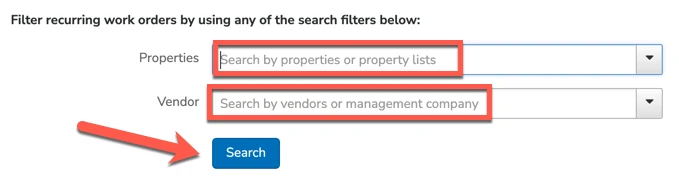
Go to Maintenance > Recurring Work Orders, or type work orders into the search bar and select Recurring Work Orders. Filter by property or vendor and click Search.
Open the recurring work order, click Edit at the top right, make the change, then click Save at the bottom.
Post One Manually
Use this when the schedule is set to Never, or when you need an extra posting outside the normal schedule. It does not disrupt the regular schedule.
-
Go to Maintenance > Recurring Work Orders and filter to find the one you want.
-
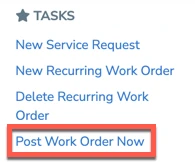
In the Tasks menu on the right, click Post Work Order Now.
-
The work order posts with today’s date.
Delete
Deleting stops future postings. It does not remove work orders that already posted, and it does not affect open bills.
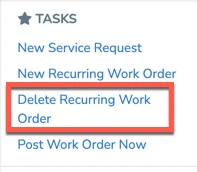
Filter to the recurring work order, then in the Tasks menu click Delete Recurring Work Order.
Troubleshooting
| Problem | Cause | Fix |
|---|---|---|
| Work order never posted this month | Vendor’s insurance expired and Vendor Compliance Control blocked it | Update the vendor’s insurance records or switch to a compliant vendor, then post manually to catch up |
| Assign To is grayed out | The recurring work order is tied to a property group or portfolio | Assign the posted work orders individually, or split the schedule into per-property recurring work orders |
| Cannot tell which work orders came from a schedule | Once posted, a work order is indistinguishable from a one-time work order in reports | Use the filters on the Recurring Work Orders page to review schedules, not the Work Order report |
| Amount on the bill is wrong every month | The Billing Information amount is out of date | Edit the recurring work order’s Billing Information. Past bills must be corrected individually |
| Duplicate work orders for the same job | A recurring schedule and a manually created service request both exist | Check the Recurring Work Orders page before creating a one-time request for routine work |