

Settings
Click Settings at the bottom of the side bar. Most changes save right away. Boxes with a Save button save when you click it.
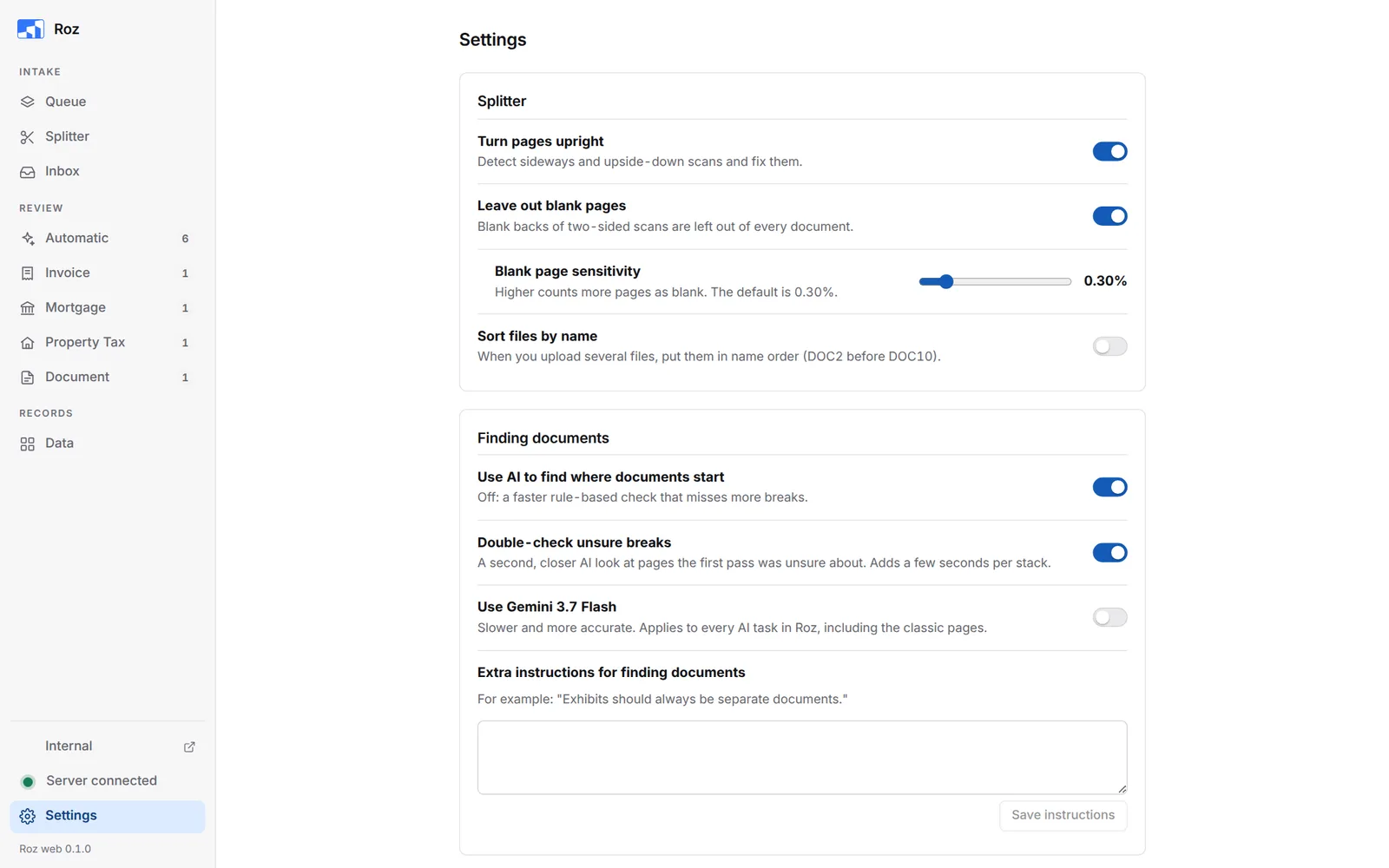
Splitter
| Setting | What it does |
|---|---|
| Turn pages upright | Fixes sideways and upside-down scans. |
| Leave out blank pages | Leaves blank backs of two-sided scans out of every document. |
| Blank page sensitivity | Higher counts more pages as blank. Default 0.30%. |
| Sort files by name | Puts uploaded files in name order (DOC2 before DOC10). |
Finding Documents
| Setting | What it does |
|---|---|
| Use AI to find where documents start | Off uses a faster rule-based check that misses more breaks. |
| Double-check unsure breaks | A second AI look at pages the first pass was unsure about. |
| Use Gemini 3.7 Flash | Slower and more accurate. Applies to every AI task in Roz. |
| Extra instructions for finding documents | For example: “Exhibits should always be separate documents.” Click Save instructions. |
Reading Invoices and Documents
After the first match, Gemini checks each document and can correct it.
| Setting | What it does |
|---|---|
| Use AI to check invoices | Checks address, entity, property, vendor and invoice number. |
| Extra instructions for invoices | For example: “Prefer matching by street number over entity name.” |
| Use AI to check documents | Checks document type, property, date and extra detail. Can suggest a new document type. |
| Extra instructions for documents | For example: “If a document has both amendment and consent language, prefer Amendment.” |
Instructions apply from the next document processed.
Google AI Key

AI features need a Google AI key. Paste it and click Save key. Get a key at aistudio.google.com.
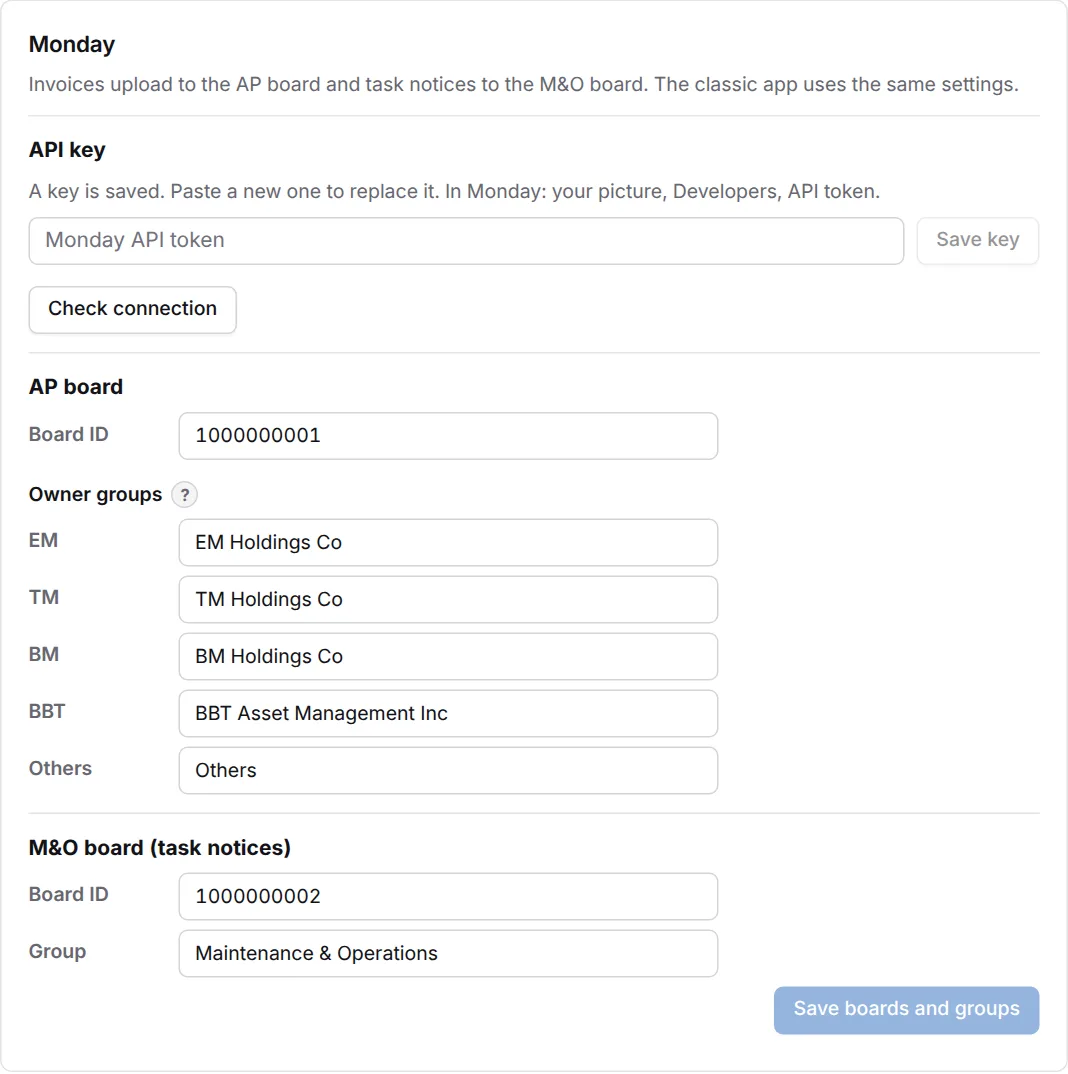
Monday
-
Paste your API key
In Monday, click your picture, then Developers, then API token. Copy it, paste it in API key, and click Save key. -
Check it
Click Check connection. Roz says if the key can see both boards. -
Check the boards and groups
AP board takes invoices. Each invoice goes to the group of its property’s owner. M&O board takes task notices. Type group names exactly as they show on the board. Click Save boards and groups.
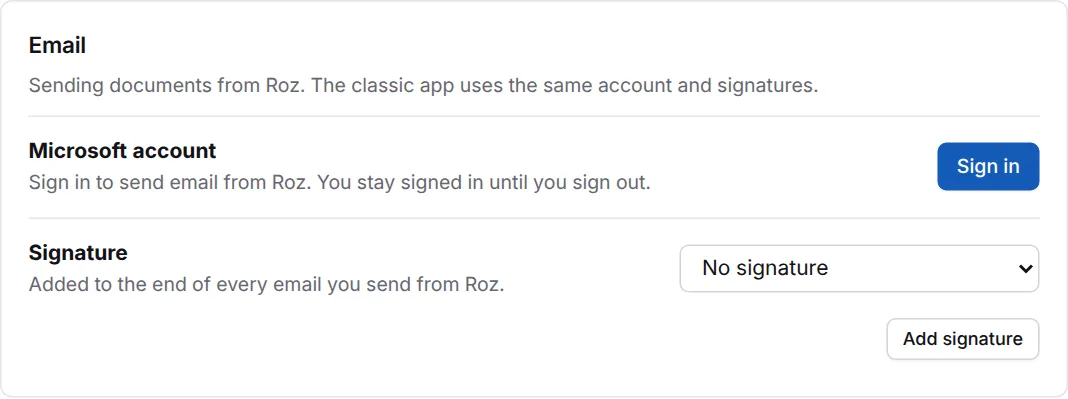
| Setting | What it does |
|---|---|
| Microsoft account | Click Sign in to send email from Roz. A Microsoft page opens. Enter the code Roz shows. You stay signed in until you click Sign out. |
| Signature | Pick the signature added to every email you send from Roz. Click Add signature to make a new one. |
Fetch Email

Turn on Fetch email into the inbox to save attachments from the invoice and document mailboxes to the shared Inbox. More options show when it is on:
| Setting | What it does |
|---|---|
| How to fetch | Graph API reads the mailboxes through Microsoft 365. Outlook COM reads folders in classic Outlook, which must be open. |
| Sign in to read mail | Graph API only. Reading mail needs its own sign-in. |
| Invoice mailbox / Document mailbox | The addresses invoices and documents are sent to. |
| Outlook folders | Outlook COM only. Click Load Outlook folders, then pick the invoice and document folders. |
| Use a cutoff date | Off fetches every unread email. On fetches unread email from Fetch email from on. |
Review Pages
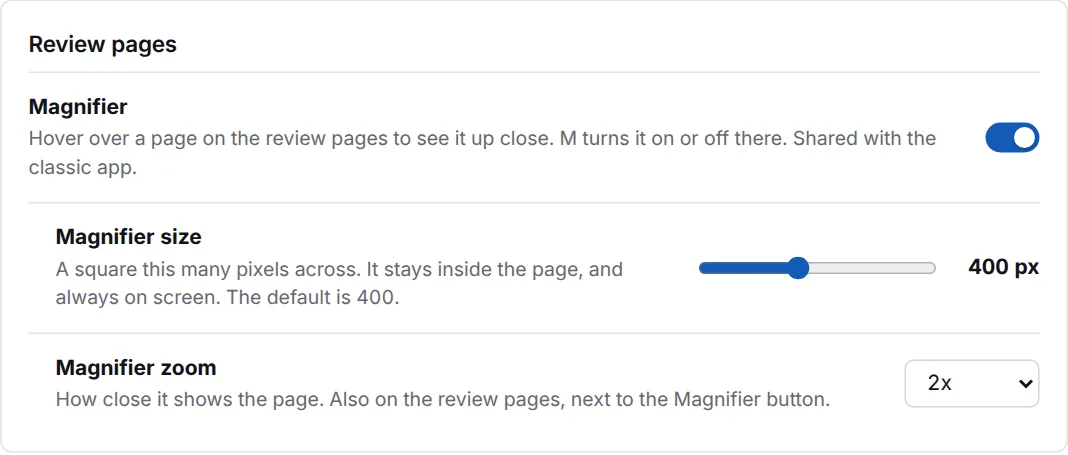
| Setting | What it does |
|---|---|
| Magnifier | Turns the magnifier on the review pages on or off. M does the same on a review page. |
| Magnifier size | How big the square is, 120 to 800 pixels. Default 400. A square shows the size while you drag. |
| Magnifier zoom | How close it shows the page. You can also change it next to the Magnifier button. |
The classic app uses the same magnifier settings.
Performance
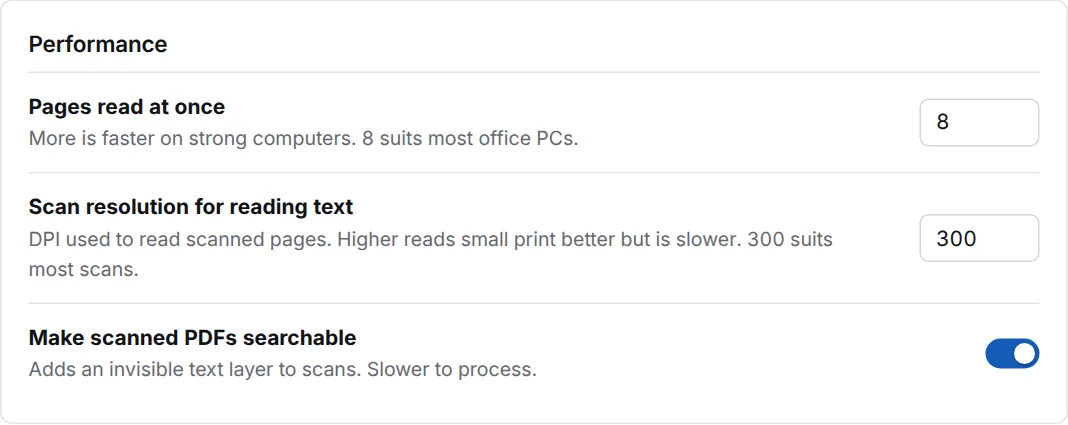
| Setting | What it does |
|---|---|
| Pages read at once | More is faster on strong PCs. 8 suits most office PCs. |
| Scan resolution for reading text | Higher reads small print better but is slower. 300 suits most scans. |
| Make scanned PDFs searchable | Adds a hidden text layer to scans. Slower to process. |
App
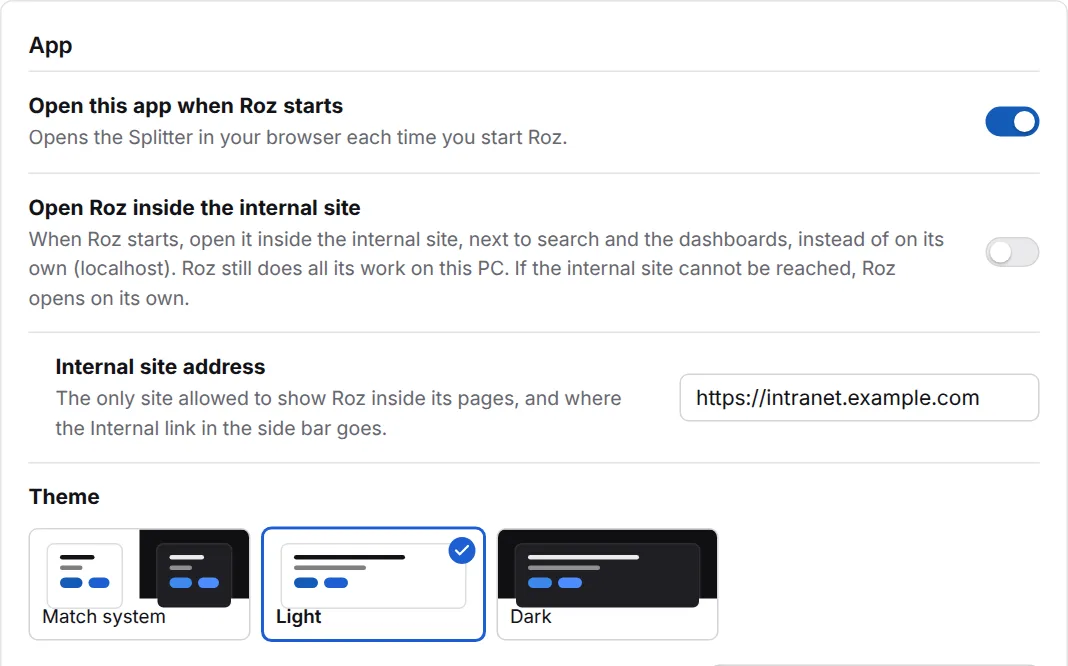
| Setting | What it does |
|---|---|
| Open this app when Roz starts | Opens Roz in your browser each time you start it. |
| Open Roz inside the internal site | Off by default: Roz opens on its own (localhost). On: Roz opens inside the internal site, next to search and the dashboards. Roz still runs on your PC. If the internal site cannot be reached, Roz opens on its own. |
| Internal site address | The only site allowed to show Roz inside its pages, and where the Internal link in the side bar goes. Do not change it. |
| Theme | Match system, Light or Dark. The classic app’s themes are listed below them. |
Advanced
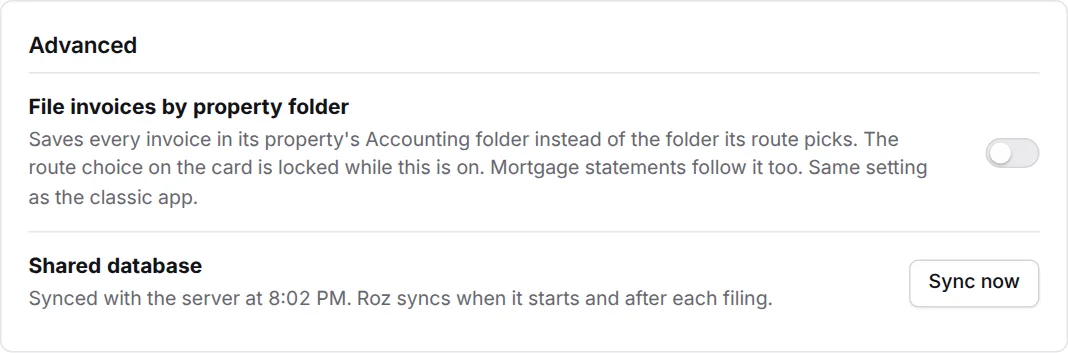
| Setting | What it does |
|---|---|
| File invoices by property folder | Saves every invoice in its property’s Accounting folder instead of its route folder. The Path on the card is locked. Mortgage statements follow it too. Leave it off unless you are told to turn it on. |
| Shared database | Shows when Roz last synced with the server. Roz syncs when it starts and after each filing. Click Sync now to sync right away. |