

Review and File
After processing, documents wait on a review page. Automatic, Invoice, Mortgage, Document and Property Tax all work the same way.
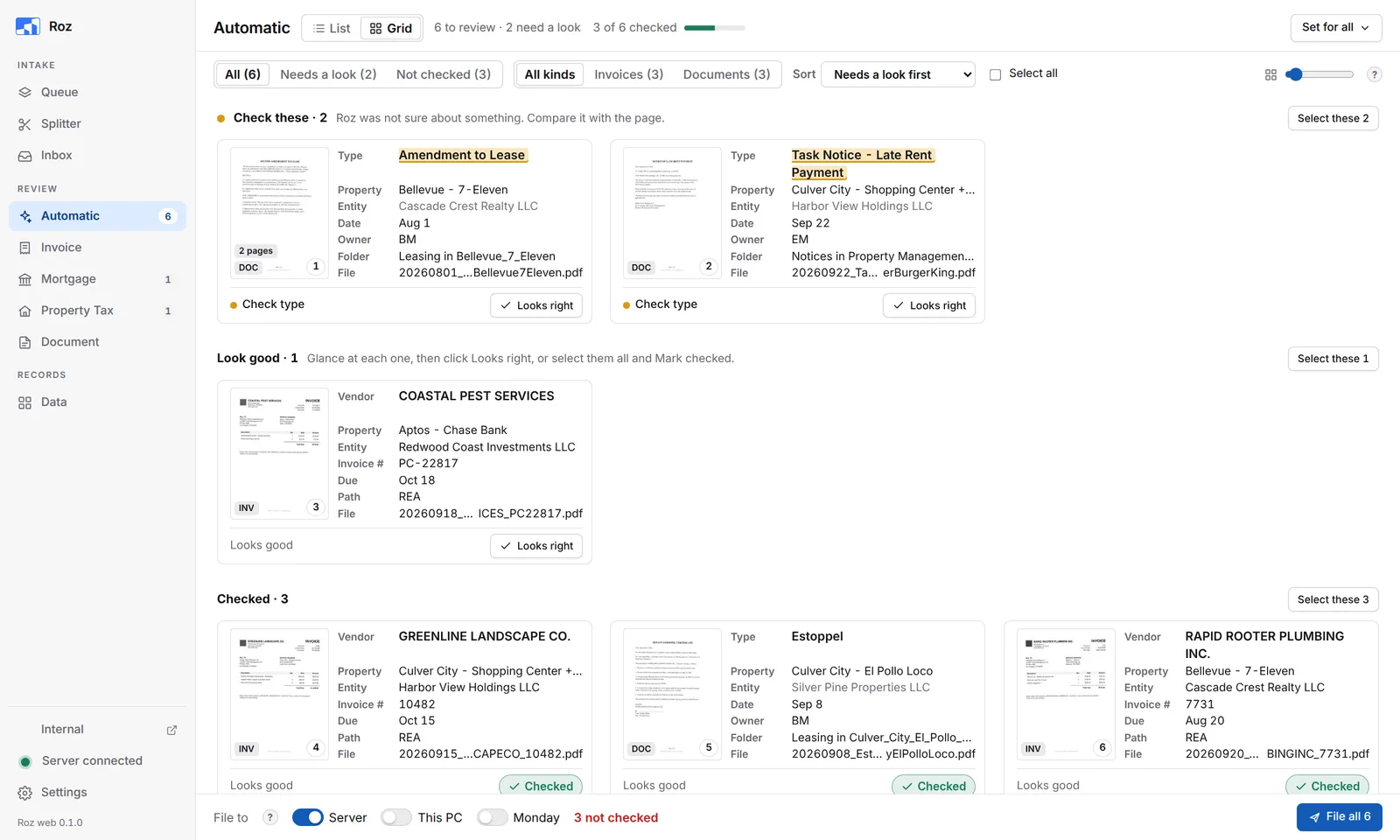
Review pages open in List view: one document at a time. See List View. Click Grid at the top to see all documents as cards. Roz remembers your choice for every review page.
Read the Cards
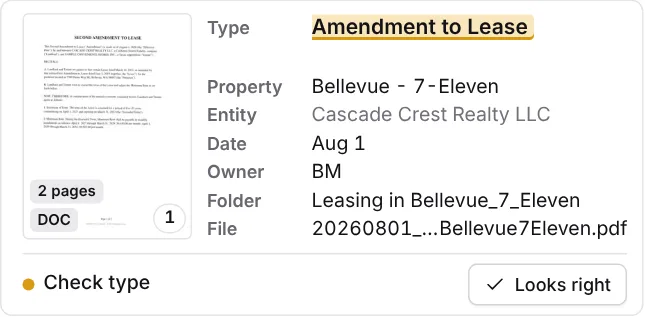
Each card shows page 1 and the key fields Roz read.
| Mark | Meaning |
|---|---|
| Yellow highlight | Roz was not sure about this value. Compare it with the page. |
| Red edge and red text | A problem to fix before filing, such as an invoice processed before. |
| Looks good (grey) | Roz is sure about every value on the card. |
| Checked (green) | Someone clicked Looks right, or opened it in the List view. |
| Blue card, ticked box | Selected. |
Cards are grouped: Problems first, then Check these, then Look good and Checked. The top of the page shows how many need a look and how many are checked.
Filters and Sorting
- All / Needs a look / Not checked filters the cards.
- On the Automatic page, All kinds / Invoices / Documents filters by kind.
- Sort changes the order. Needs a look first is the default.
- The slider at the right changes the card size. The ? explains every mark.
Review a Card
-
Check the card against the page
If everything is right, click Looks right on the card. Or press C. -
Open a card to change it
Click the card. The editor opens with the page on the left and every field on the right. -
Fix what the yellow box lists
Check these against the page lists what Roz was not sure about. Click Go to to jump to that field. -
Move on
Click Looks right, next (or press Enter) to mark it checked and open the next card. Previous and Next move without marking.
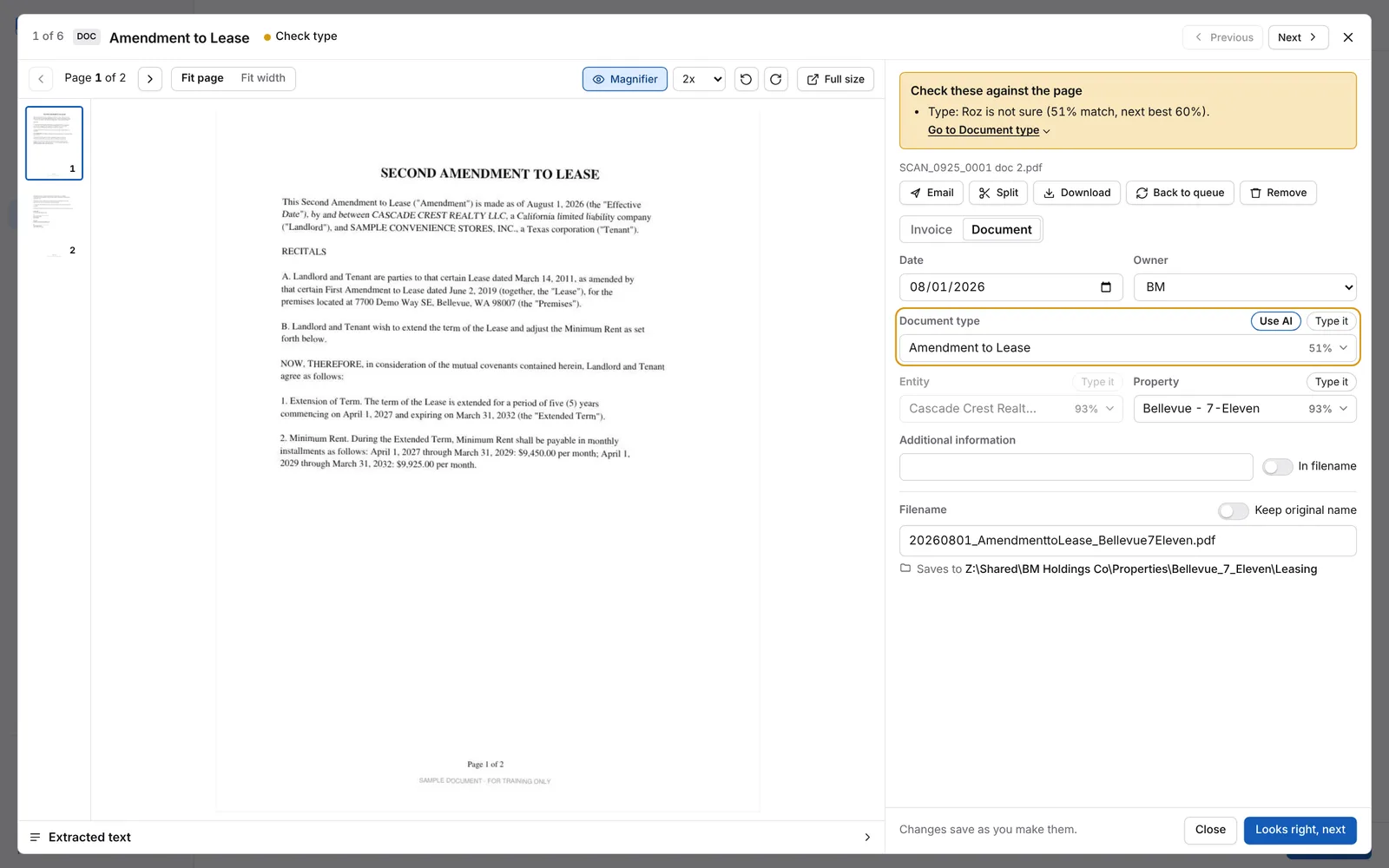
Changes save as you make them. Press Esc or click Close to go back to the grid.
Fix a Field
Each field shows Roz’s best match with a score, for example 100%. Click the field to see other matches.
- Type it lets you type the value yourself. Pick from list goes back to the matches.
- Some fields fill others. Picking an address fills the entity and property.
- The filename updates as you change fields. You can also type a new filename. Reset brings back the generated one.
- Keep original name files the document under the name it arrived with.
- The line under the filename shows where it saves, for example
Saves to BBT Asset Management Inc\Accounting\REA_Invoices\09-25-2026.
Field details: Invoices and Mortgages and Documents.
The Page Viewer
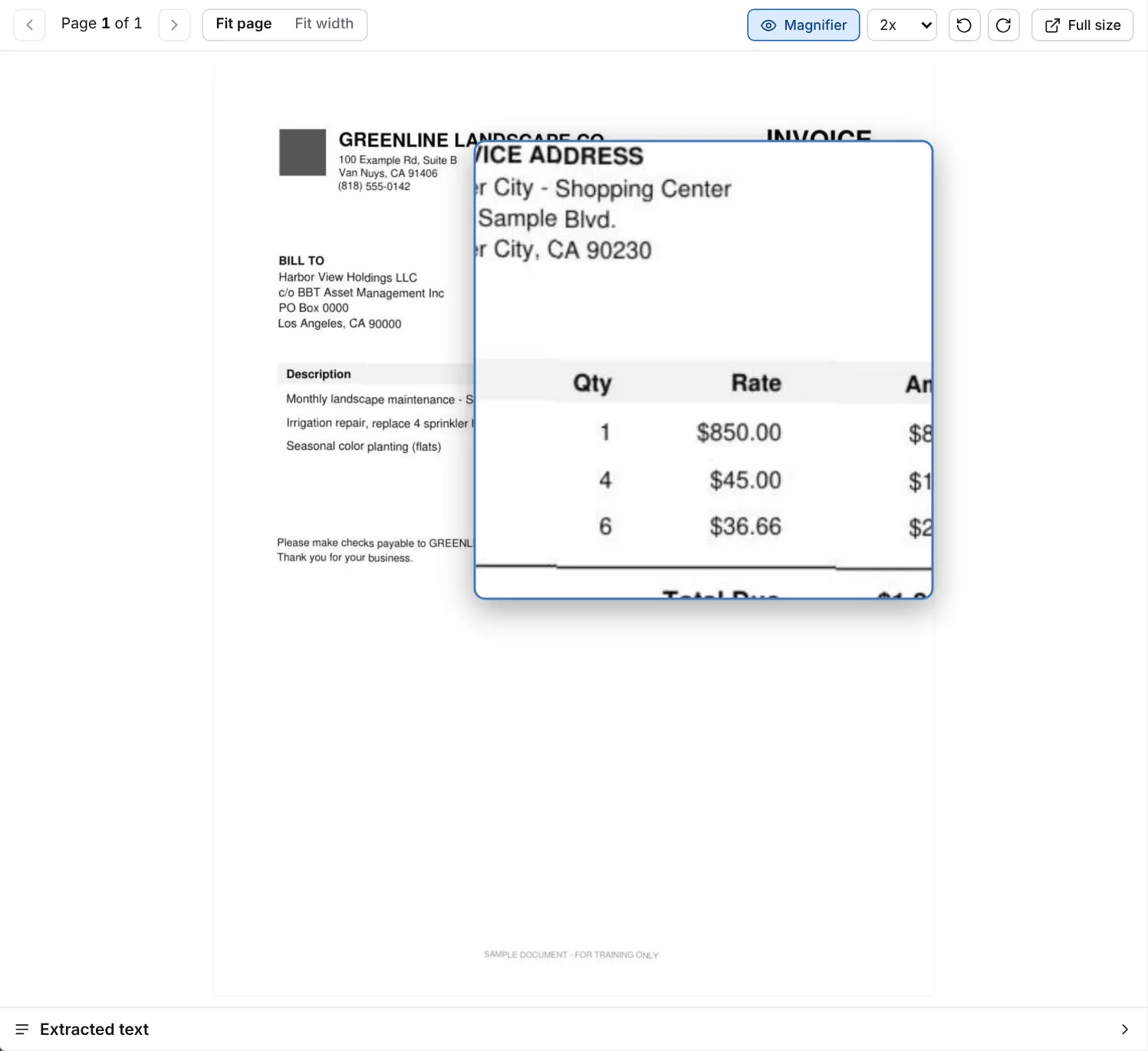
- Use the arrows or the thumbnails to change pages.
- Fit page shows the whole page. Fit width fills the width so you can scroll.
- Magnifier shows a square close-up where your mouse is. Press M to turn it on or off. Pick the zoom next to it. Change its size in Settings > Review pages.
- The turn buttons rotate the page. The turn is saved in the filed PDF.
- Full size opens the page in a new tab.
- Extracted text at the bottom shows the text Roz read. Click Copy to copy it.
When the panel is narrow, the viewer and card buttons show icons only. Point at one to see its name.
Card Buttons
| Button | What it does |
|---|---|
| Send the document from your Outlook. See Email a Document. | |
| Split | Shows on multi-page documents. Splits it into documents of a few pages each and processes them again. |
| Download | Download the file with its new name. |
| Back to queue | Send it back to To process as it arrived. Your changes are dropped. |
| Remove | Move it to Trash. Restore it from the Queue. |
On the Automatic page, the Invoice / Document switch changes how Roz reads the document. Roz keeps both versions, so switching back is quick.
Work on Many Cards
Tick the box on each card, or tick Select all. A blue bar appears at the bottom.

- Mark checked marks every selected card as checked.
- Back to queue and Remove work on the selected cards.
- Select these next to a group heading selects that group.
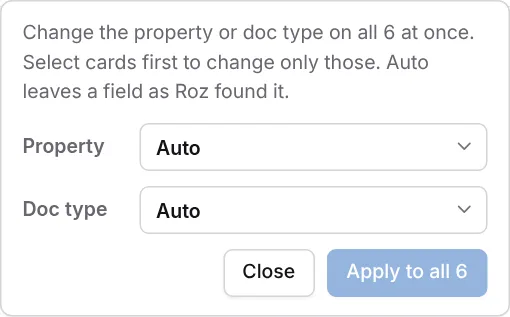
To set one property or doc type on many documents, click Set for all at the top right. Select cards first to change only those.
File Documents

-
Pick where to file
Turn on Server, This PC, Monday, or more than one. -
Pick which documents
With no cards selected, the button files every document on the page. Select cards to file only those. -
Click File
Filed documents move to the Queue’s Filed tab.
| Option | Where the file goes |
|---|---|
| Server | The folder shown on the card, on the Z: drive. |
| This PC | A copy in a folder in your Documents. |
| Monday | Invoices go to the AP board. Task notices go to the M&O board. Leave it off for invoices, they no longer go to Monday. |
| Assign PM on notices | Shows when Monday is on. Assigns the property manager on task notices. |
Email a Document
-
Open the card and click Email.
-
Sign in the first time
Click Sign in to Outlook. A Microsoft page opens. Enter the code Roz shows. You can also sign in under Settings > Email. -
Add recipients
Type a name or an email address in To. Names come from the email contacts list in Data. -
Check the subject and message
Roz fills them in from the card. Your signature from Settings > Email is added. -
Send
Send keeps the document on the review page, so you can still file it. Send and remove moves it to Filed and takes it out of the shared inbox.
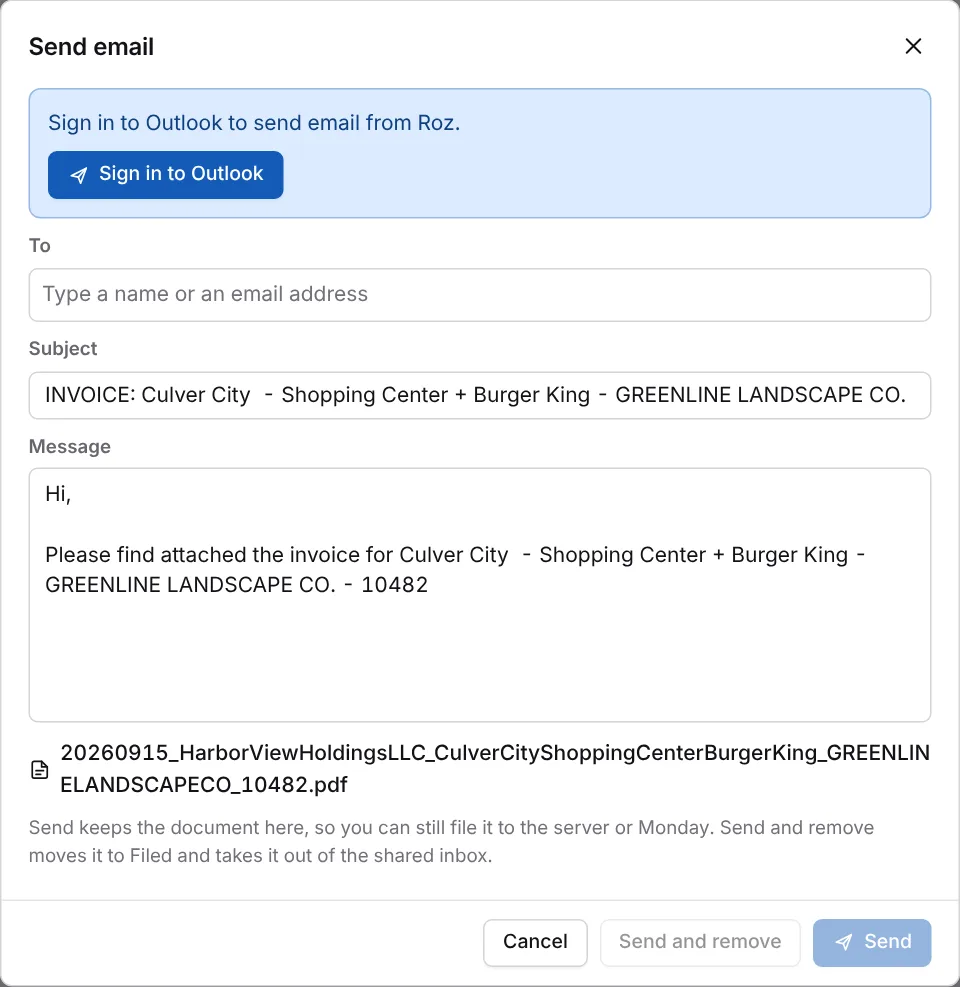
Invoice cards can also show Notify with the property manager’s name. It opens the same dialog, addressed to the manager.
List View
List is the default view. The list is on the left, the page in the middle, and the card on the right. The file bar works the same as in Grid.
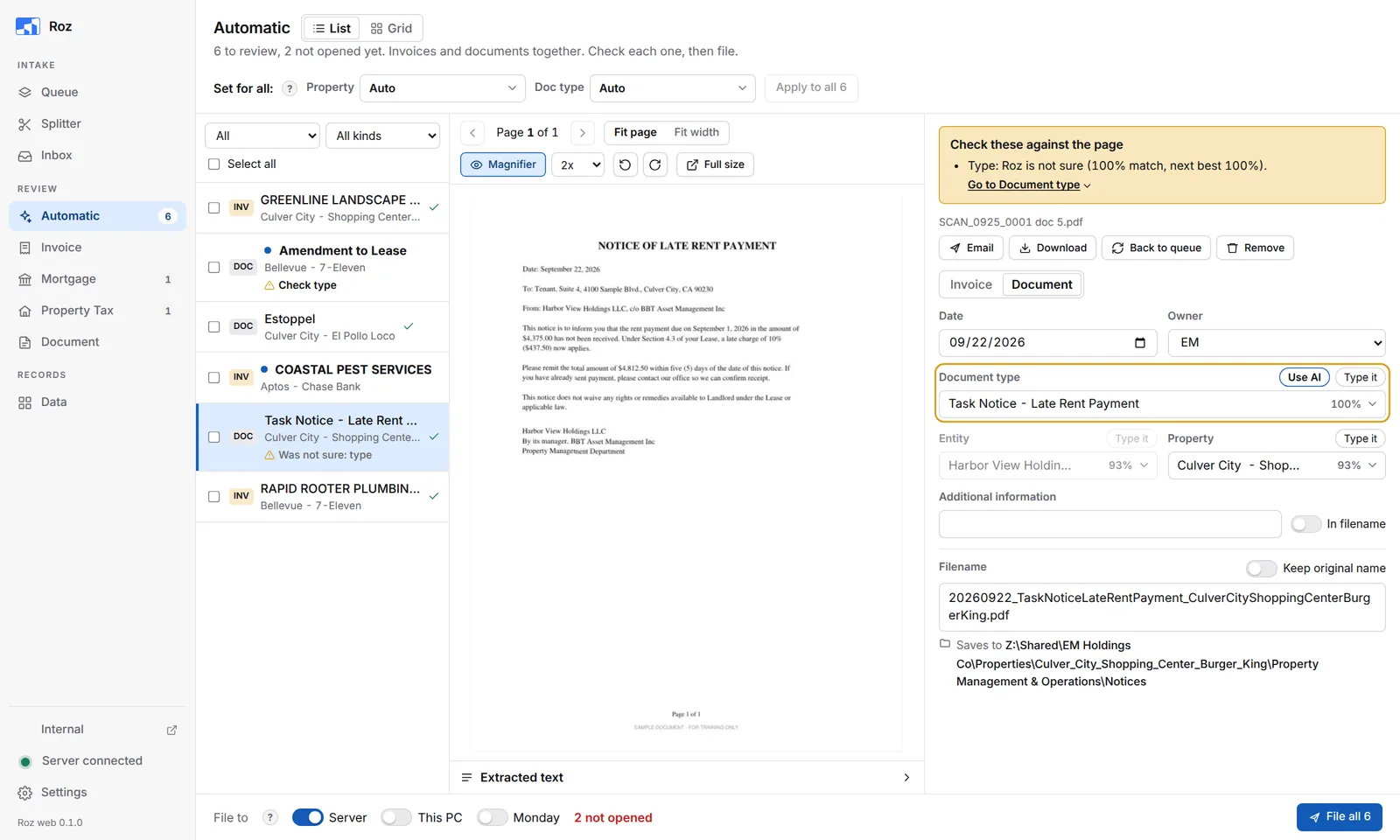
- The first box above the list picks what it shows: All, Needs a look (with the count) or Unopened. On the Automatic page, the second box picks All kinds, Invoices or Documents.
- A blue dot means nobody has opened the document yet. Opening it counts as checked.
- A row that needs a look says what to check, such as Check type.
- The same Check these against the page box as in Grid sits above the card.
- Set for all sits at the top of the page, above the list.
- Press J / K or the arrow keys to move between documents. The list keeps the current one in view.