

Queue
The Queue holds every document Roz is working on, on this PC. A document stays here until you file it or remove it.
Add Files
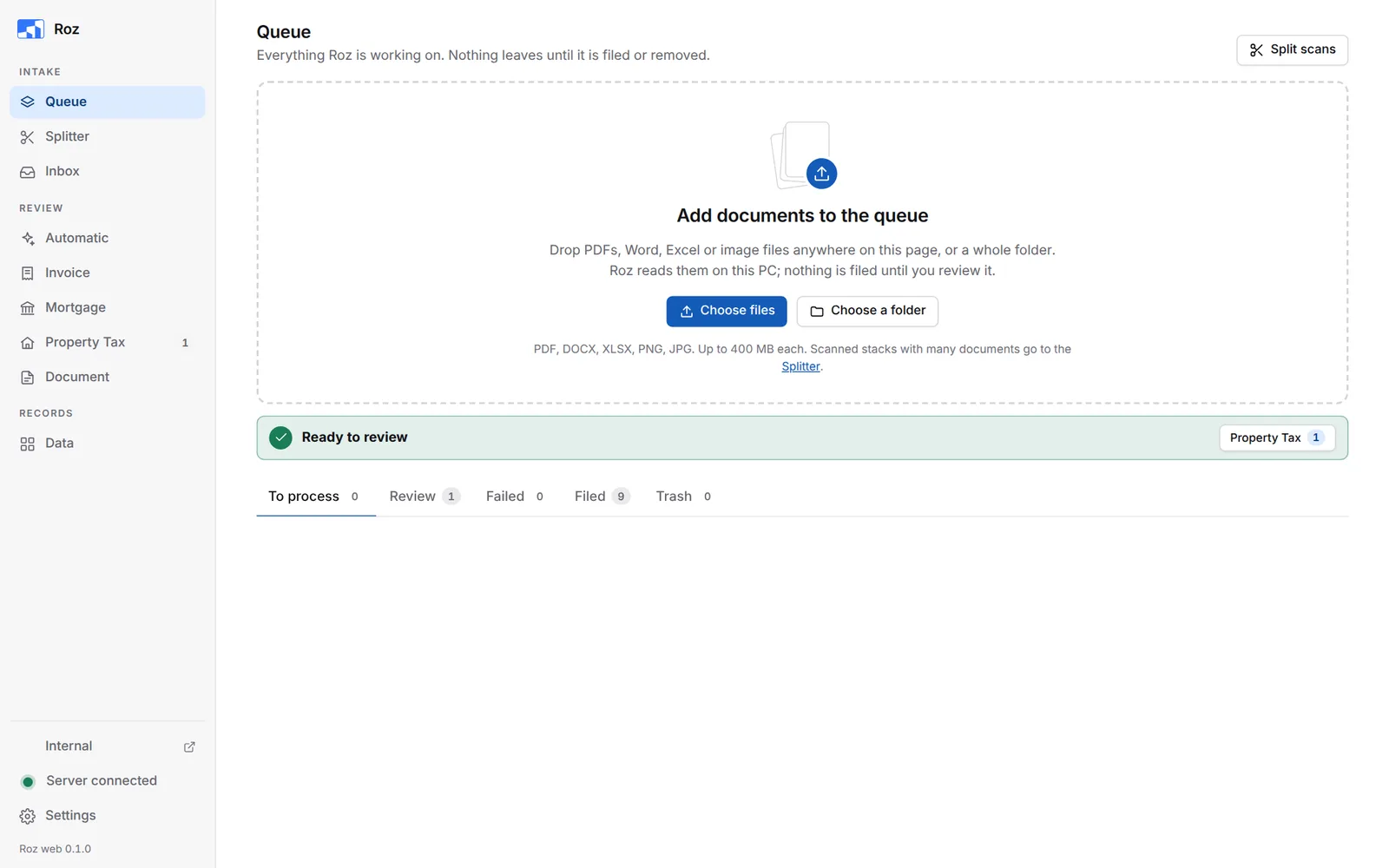
- Drop files or a whole folder anywhere on the page.
- Or click Choose files or Choose a folder.
- Roz takes PDF, Word, Excel and image files, up to 400 MB each. Other files are left out and listed with the reason.
When the upload is done, the new files are ticked on the To process tab, ready for the next step. When documents are already waiting, the drop area shrinks to one row.
To split a scan first, click Split scans. See Splitter.
Process Documents
-
Select documents
Tick the boxes on the To process tab. Tick a group’s box to select the whole group. Clicking a row opens the document instead. See Look at a Document. -
Pick how to process them
Choose an option next to Process as.
-
Set a property or type (optional)
For Automatic and Document, pick one Property for all. For Document, you can also pick one Type. Leave Auto to let Roz decide. -
Click Process
Roz opens the review page and shows a progress bar. Documents appear as they are ready.
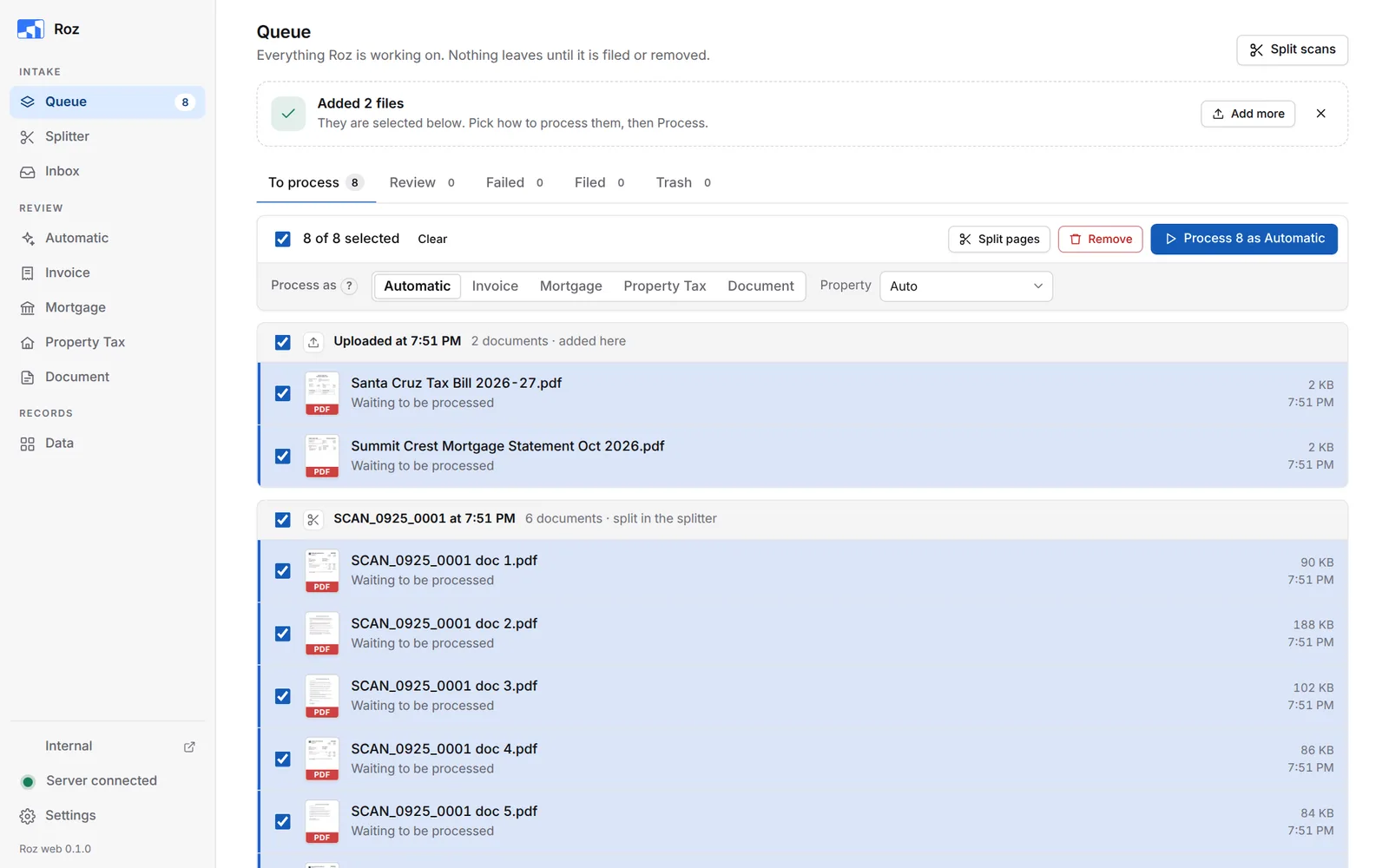
| Process as | Use it for |
|---|---|
| Automatic | A mix of invoices and documents. Roz decides which is which. |
| Invoice | Vendor invoices. |
| Mortgage | Mortgage statements. They always file to the LOAN path. |
| Property Tax | County tax bills. |
| Document | Leases, amendments, notices, estoppels and other documents. |
PDFs added here or taken from the Inbox are turned upright when they are processed, like in the Splitter. This follows Settings > Splitter > Turn pages upright. Back to To process gives back the file as it arrived.
Look at a Document
Each row shows page 1 of the document. Click a row to open it.
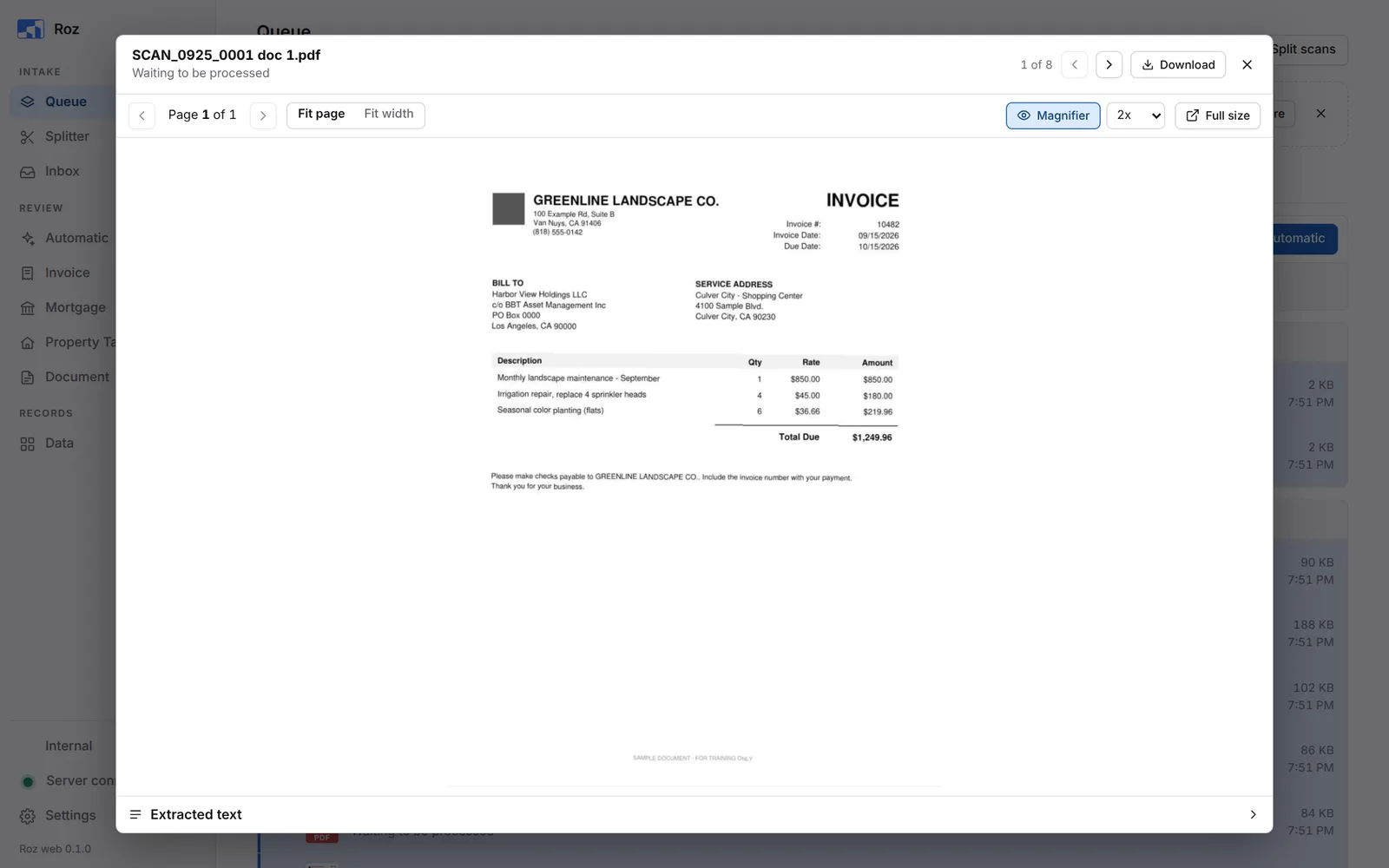
- Use the page viewer as on the review pages: page arrows, Fit page / Fit width, Magnifier and Full size.
- Extracted text at the bottom shows the text. Before processing, it shows only the text already in the PDF. Scans are read when you process them.
- Up and Down arrows, or the arrows at the top, move through the list.
- Review in opens the document on its review page. It shows once the document is processed.
- Download saves the file. Press Esc to close.
Tabs
| Tab | What is in it | Buttons |
|---|---|---|
| To process | Documents waiting to be read. | Split pages, Remove, Process |
| Review | Documents read and waiting for you to check them. | Remove, Back to To process |
| Failed | Documents Roz could not read, with the reason. The count turns red. | Remove, Try again |
| Filed | Documents you filed or emailed. Kept for 14 days. | Reopen |
| Trash | Documents you removed. Kept for 7 days. | Restore, Delete forever |
Each group shows where the documents came from: split in the Splitter, from the email inbox, or added here. A red Duplicate tag means the same file is already in Roz.
Review Tab
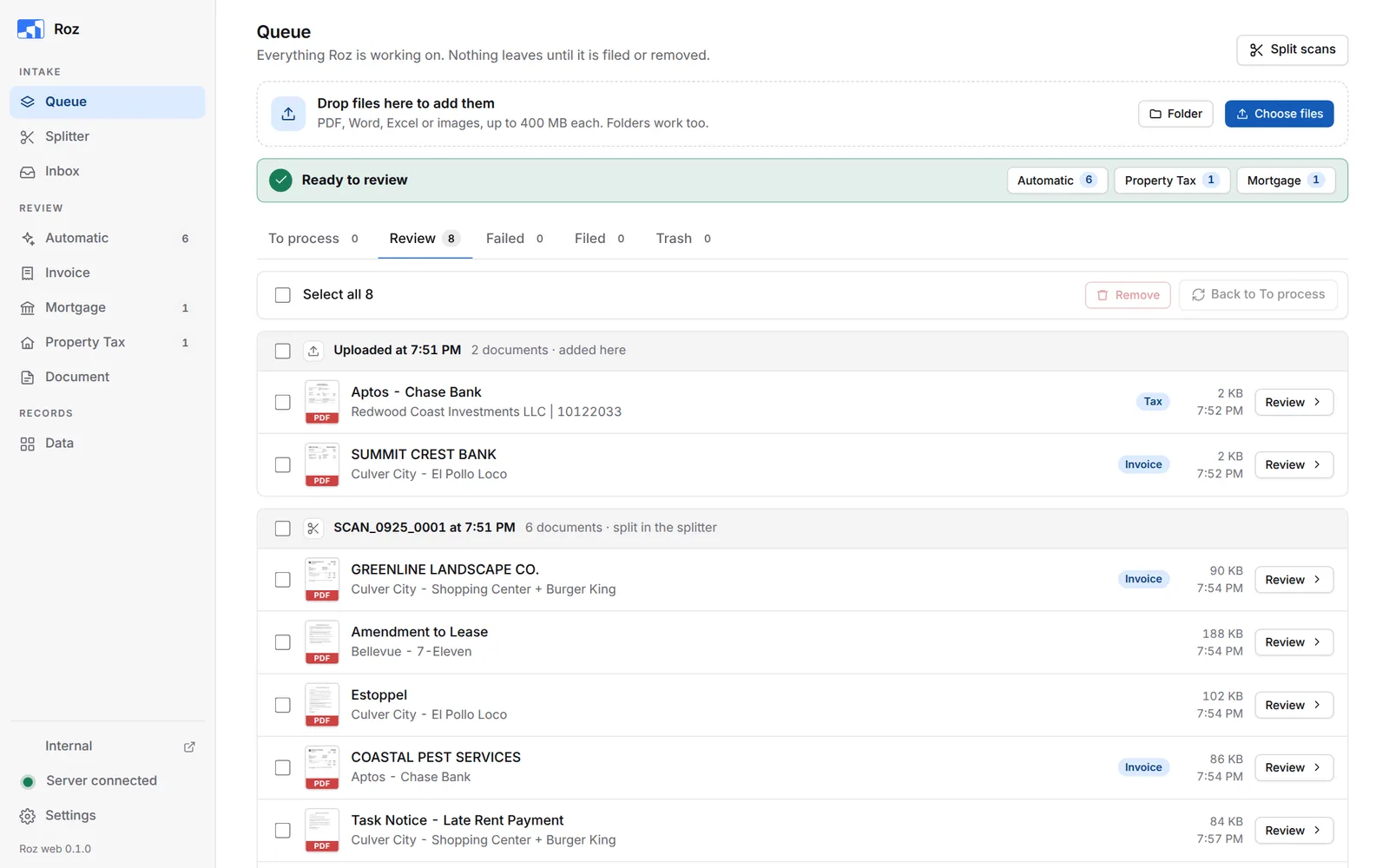
A green Ready to review bar shows how many documents wait on each review page. Click a button to open that page. Each row also has a Review button.
Processed a document the wrong way? Select it and click Back to To process. It goes back as it arrived, and you can process it again.
Filed Tab
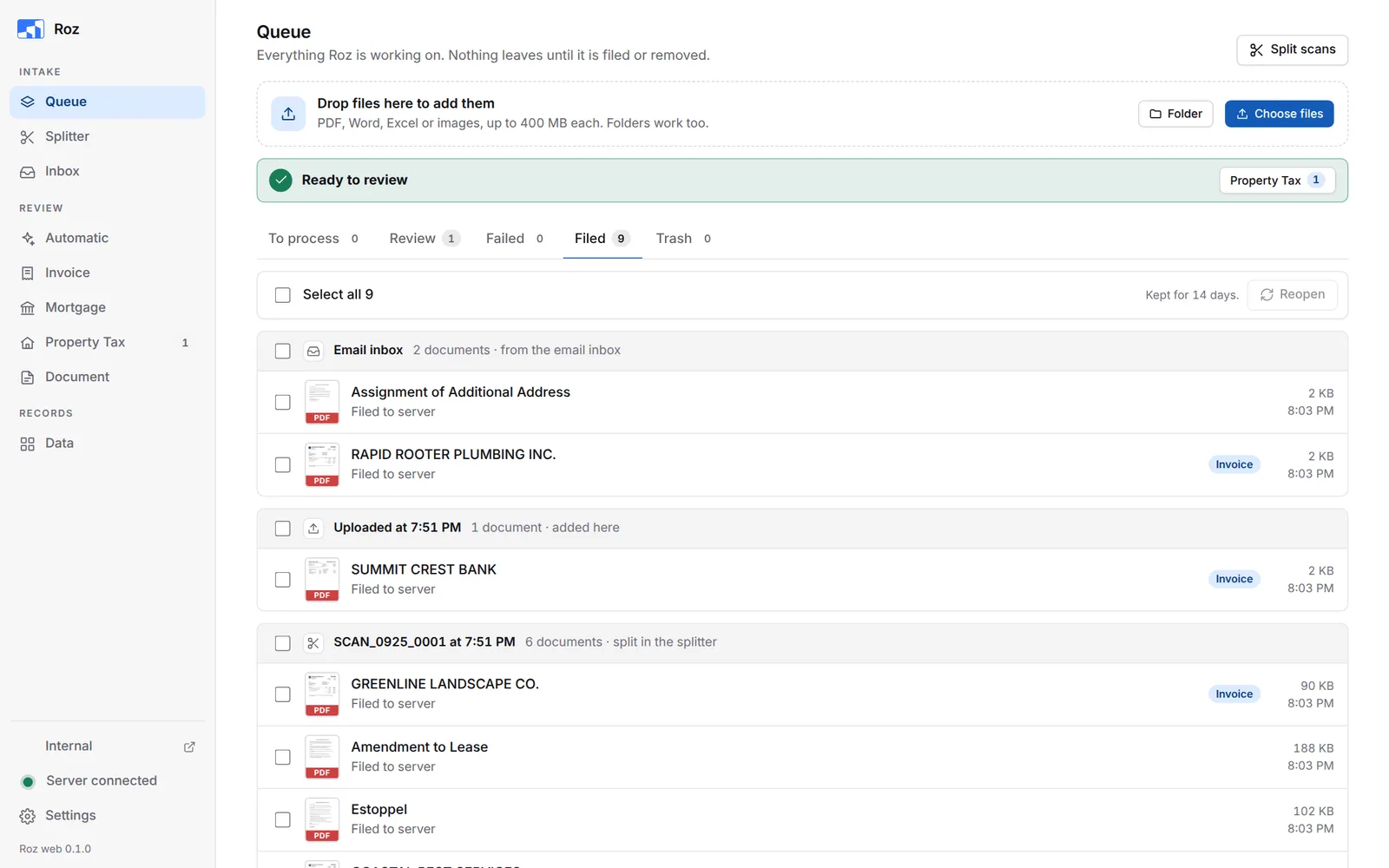
Each row shows where the document went: server, this PC, Monday, or email.