
Splitter
The Splitter turns one scanned stack into separate documents. Roz reads every page, marks where each document starts, and leaves out blank pages. You check the marks, then send the documents on.
Split a Stack
-
Open the Splitter
Click Splitter in the side bar. -
Add the scans
Drop PDFs on the page or click Choose PDFs. Several files are treated as one stack, in order. Turn on Sort files by name to put them in name order.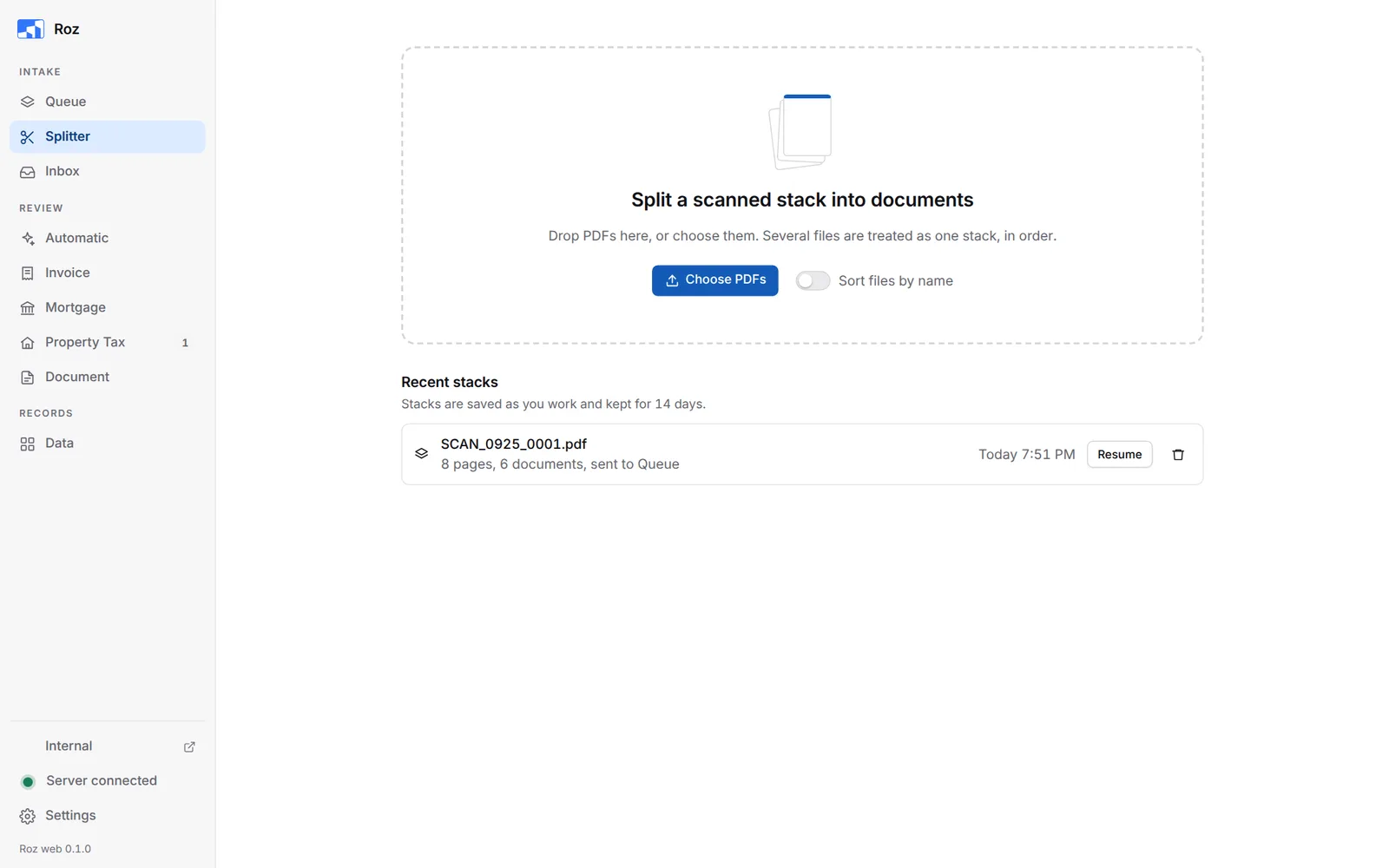
-
Wait for the pages to be read
A progress bar shows while Roz reads the pages. Click Cancel to stop. -
Check the documents
Each document starts with a yellow New doc tab. Pages left out get a red Excluded tab, or Excluded · blank when Roz left out a blank page. Fix any break that is wrong. See Fix the Breaks. -
Pick what happens next
Choose an option in the bar at the bottom. See After Splitting. -
Send
Click the blue button, for example Split and process 6 documents as Automatic.
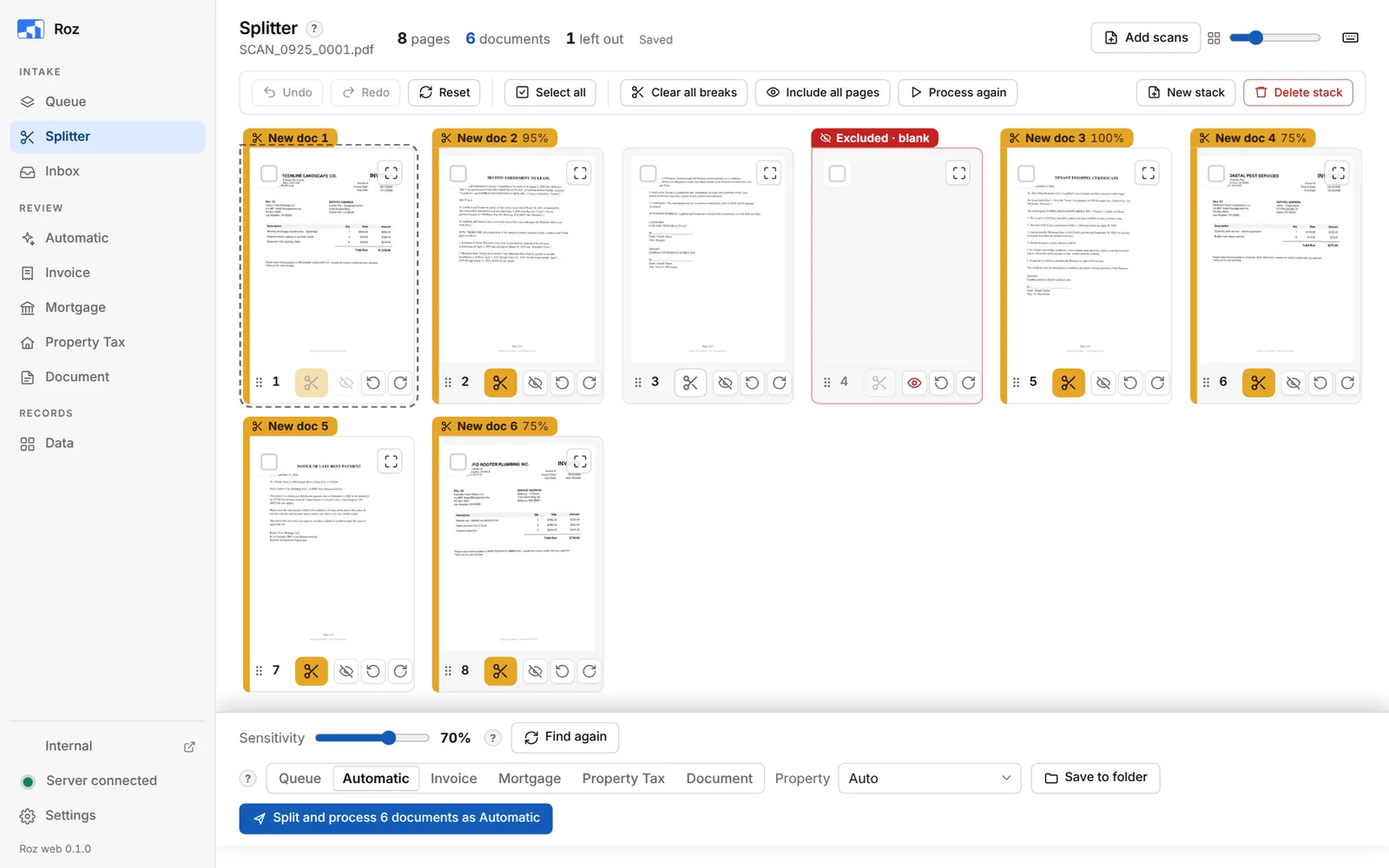
The top of the page shows the number of pages, documents, and pages left out. Saved means your changes are stored. The ? next to a heading explains it.
Fix the Breaks
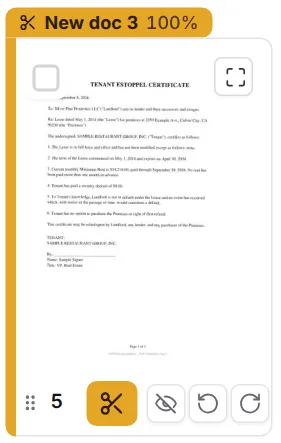
Each page card has the same buttons.
| Button | What it does |
|---|---|
| Scissors | Start a new document at this page. Click again to join it to the document before. |
| Eye | Leave this page out, or bring it back. |
| Turn left / Turn right | Rotate the page. The turn is saved in the file. |
| Corner button | Open a large preview of the page. You can also double-click the page. |
| Grip (dots) | Drag the page to a new spot. Near the top or bottom of the window, the page scrolls. |
The percentage on a New doc tab shows how sure Roz is about that break.
Work on Several Pages
Tick the box on a page to select it. Shift-click selects every page between. Ctrl-click adds or removes one page. Selected pages turn blue, and a bar appears at the bottom of the window.
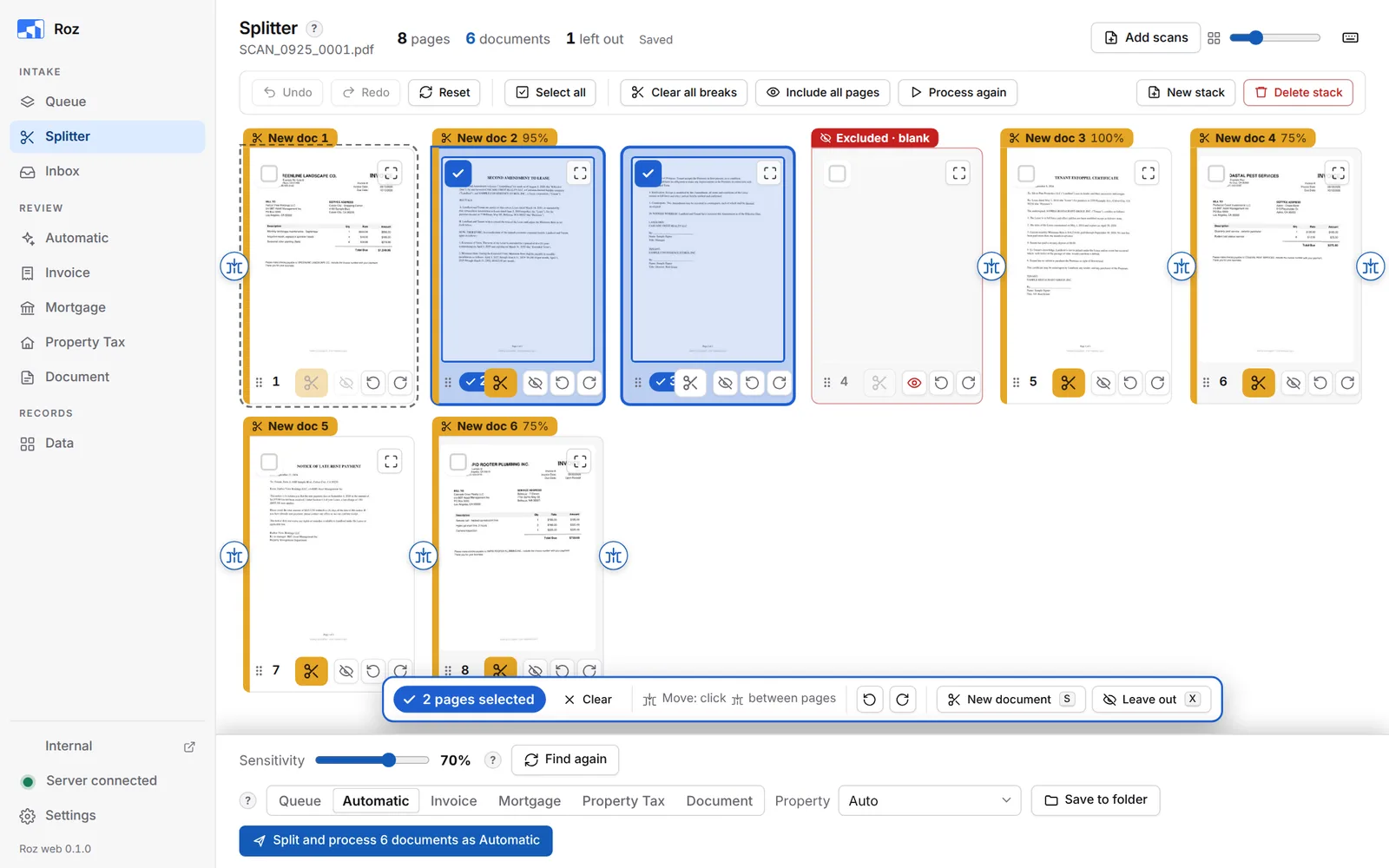
Move the pages: round move buttons show in the gaps between pages. Click one to move the selected pages there. Pointing at a button shows a line where they will go. You can also drag them, or press Alt + Left / Right to move them one place.

- Turn the pages left or right.
- New document (S): the first click makes each selected page start a document. The second click joins them into one.
- Leave out (X): the first click leaves the pages out. The second click puts them back.
A notice says what happened. Press Esc or click Clear to clear the selection.
Preview a Page
Double-click a page to open it large. The right side shows which document the page belongs to and why it starts a document. Turn page has Left, Around and Right. Show page text shows the text Roz read.
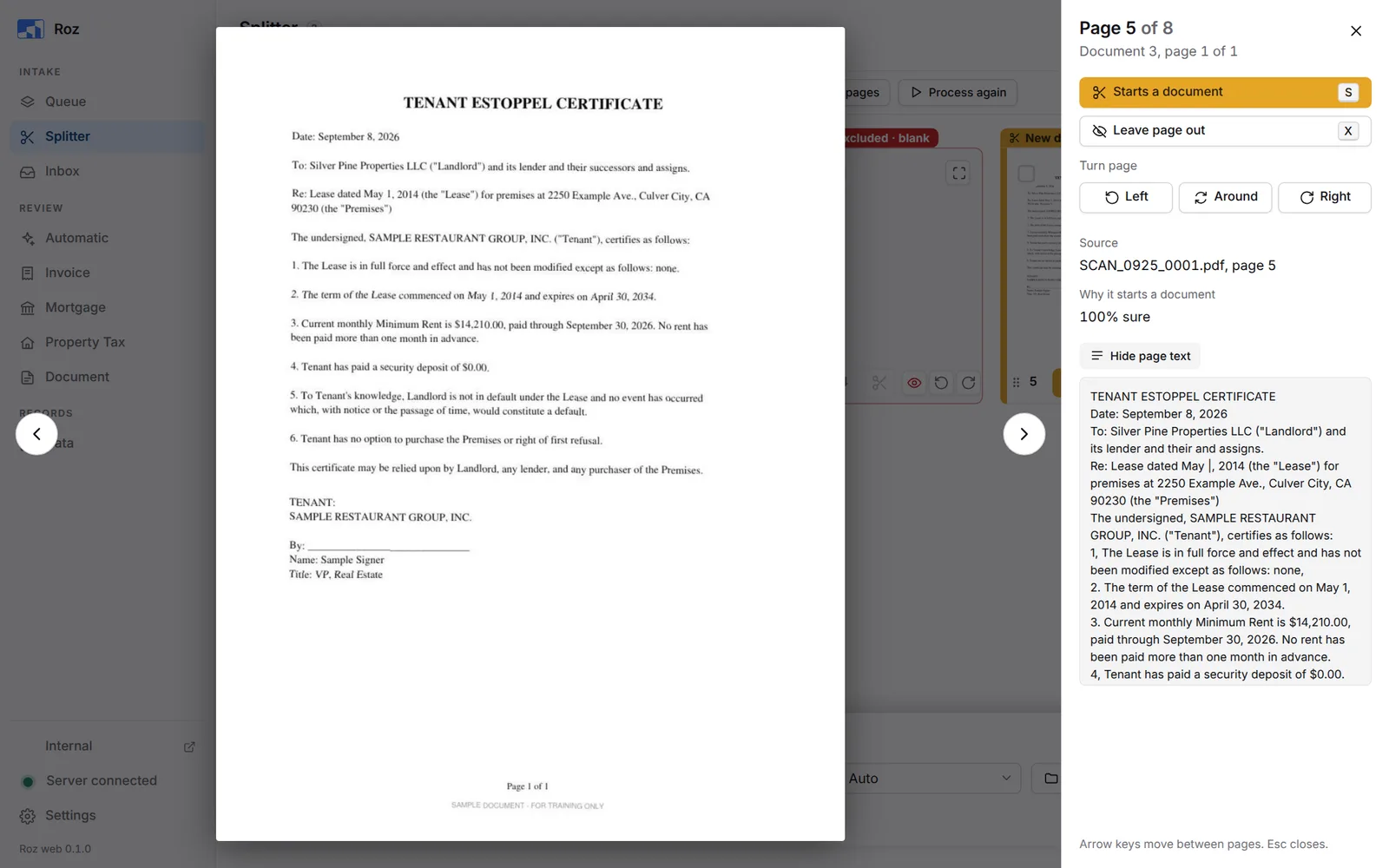
Use the arrow keys to move between pages. Press Esc or click outside the page to close.
Other Buttons
| Button | What it does |
|---|---|
| Find again | Look for breaks again with the Sensitivity you set. Lower finds more documents, higher finds fewer. Left-out pages stay left out. |
| Clear all breaks | Make the whole stack one document. |
| Include all pages | Bring back every page that was left out. |
| Process again | Read every page again from scratch. This drops your page moves and break changes. |
| Add scans | Add more PDFs to the end of this stack. Only the new pages are read. On a stack you already sent, it starts a new stack. |
| New stack | Keep this stack saved and start another. |
| Delete stack | Remove this stack from your PC. Documents already sent are not affected. |
After Splitting
The bar at the bottom of the window picks where the documents go.

| Option | What happens |
|---|---|
| Queue | Documents go to the queue’s To process tab. Process them later. |
| Automatic | Documents are processed as invoices or documents, whichever fits. Review them on the Automatic page. |
| Invoice | Processed as invoices. Review on the Invoice page. |
| Mortgage | Processed as mortgage statements. Review on the Mortgage page. |
| Property Tax | Processed as tax bills. Review on the Property Tax page. |
| Document | Processed as documents. Review on the Document page. |
For Automatic and Document you can set one Property for every document. For Document you can also set one Type. Leave them on Auto to let Roz decide for each one.
Save to folder saves each document as a PDF in Documents\split_docs on your PC instead.
When the documents are sent, a green bar confirms it. Click Open queue to see them.

Resume a Stack
Stacks save as you work. Open the Splitter and click Resume next to a stack under Recent stacks. Stacks are kept for 14 days.
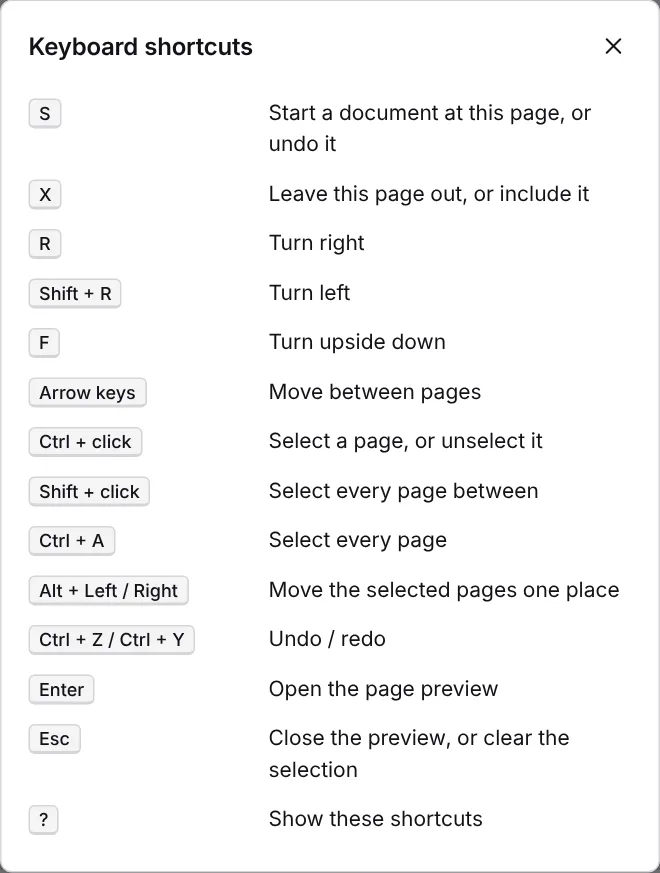
Keyboard Shortcuts
Press ? in the Splitter, or click the keyboard button at the top right, to see this list.